Here's what nobody tells you about remote desktop hosting until you're knee-deep in implementation: it's not just about buying a server and installing Windows. I've watched companies rush into deployments thinking they'd save money on hardware, only to discover bandwidth costs they never budgeted for, printing nightmares that wasted weeks of IT time, and security gaps that made their insurance company nervous.
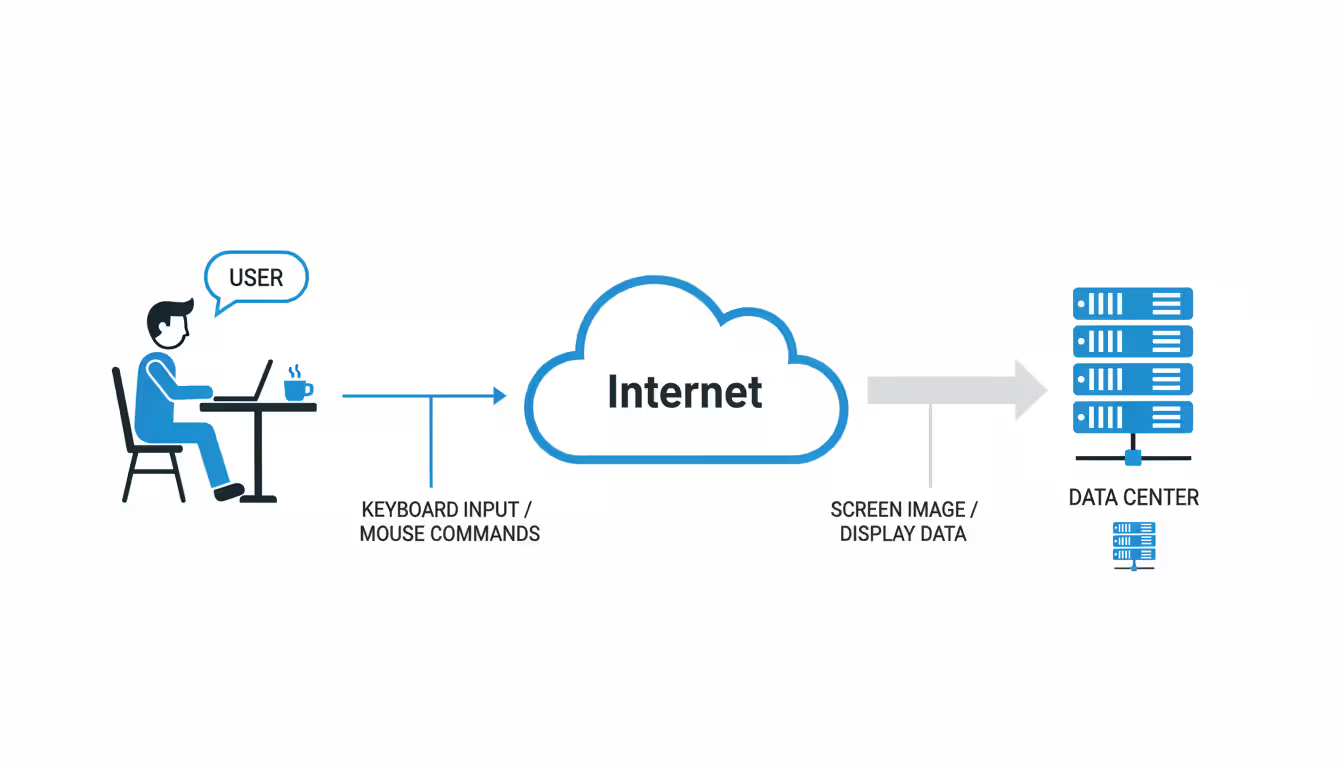
The core idea sounds simple enough. Your team connects to desktop environments running on servers in a data center instead of using local PCs. Everything happens on the server—applications run there, files save there, processing happens there. Employees just see the screen and click around like normal.
But between "sounds simple" and "works reliably" lies a minefield of decisions about infrastructure, security, and configuration. Should you rent a VPS for $40/month or lease a dedicated server for $300? How do you stop attackers from hammering your login page 24/7? Why won't Karen's label printer work from her remote session?
Let's walk through the choices that actually matter.
What Is Remote Desktop Hosting and How Does It Work
Think of remote desktop hosting as running your computer somewhere else. You sit at your laptop in a coffee shop, but the actual Windows desktop you're using runs on a server 500 miles away in a data center. Your laptop just shows you what's happening and sends your mouse clicks and keystrokes back.
The magic happens through protocols that compress everything aggressively. When you type in Word, your server doesn't send the entire document—just the pixels that changed on screen. Move a window around? The protocol identifies the moving rectangle and optimizes transmission. This compression matters tremendously because you're pushing all this through internet connections that vary wildly in quality.
Microsoft's RDP dominates Windows environments. Open a connection and you'll typically use 150-300 Kbps of bandwidth while editing spreadsheets or browsing internal applications. Start watching a training video embedded in PowerPoint? That number jumps to 3-5 Mbps. The protocol adapts on the fly, sacrificing image quality on slow connections to maintain responsiveness.
Author: Chloe Bramwell;
Source: baltazor.com
Why do companies bother with this complexity? Three scenarios come up repeatedly:
Software developers hate configuring workstations. Give them hosted desktops and suddenly you can clone the perfect development environment to 20 new contractors in an afternoon. No more "works on my machine" problems when everyone's machine is identical.
Accounting firms bring on temporary workers every tax season. Buying them PCs and licenses makes no sense when they're gone by May. Hosted desktops scale up for four months, then scale back down. You pay for what you use.
Healthcare clinics can't let patient records touch doctors' home computers (HIPAA gets cranky about that). Host the desktops in compliant data centers and it doesn't matter if your physician logs in from a five-year-old laptop. The data never leaves the secure environment.
Under the hood, you're running specialized multi-session operating systems—Windows Server 2022 is common—that let dozens of people share one machine simultaneously. Small setups throw everything on one server. Larger deployments split responsibilities: connection brokers distribute users across multiple servers, gateway servers handle internet traffic, and licensing servers track who's allowed to connect.
One configuration decision causes endless headaches if you get it wrong: what happens when someone's internet drops? Their session can either terminate immediately (destroying any unsaved work) or stay alive for 30 minutes hoping they reconnect. I've seen administrators set aggressive timeouts "for security" without realizing their sales team works from coffee shops with spotty WiFi. Suddenly users lose work constantly and IT gets blamed.
Match your session policies to how people actually work, not theoretical best practices.
Remote Desktop Server vs Remote Desktop VPS
You've got two fundamental choices for infrastructure: rent an entire physical server that's all yours, or rent a slice of a shared server through VPS hosting. The decision impacts everything from performance to your monthly bill.
Dedicated servers mean exactly that—dedicated. You get every CPU core, every gigabyte of RAM, every disk spindle. Nobody else's workload touches your hardware. When your engineer fires up a memory-intensive compilation job, it doesn't slow down because someone else on the same physical box decided to run database queries.
VPS hosting carves that same physical server into isolated chunks. You might get 8 CPU cores and 32GB of RAM, but you're sharing the underlying hardware with five other customers. Modern hypervisors (the software that does the carving) provide strong isolation. Your neighbor can't peek at your data or steal your CPU cycles directly. But you're still sharing the network card, the disk controller, and the physical CPU package.
Does this matter for your use case? Sometimes yes, sometimes no.
Feature
Dedicated Server
VPS
Monthly Cost
$150-500 starting point
$20-100 for comparable resources
Performance
Consistent, no resource competition
Can vary with neighbor activity
Scaling
Order new hardware, wait for delivery and setup
Adjust allocation in provider portal, live in minutes
Management
You control everything (and fix everything)
Provider maintains hardware, you manage OS and apps
Best For
15+ concurrent users, resource-heavy applications
1-10 users, typical office productivity
When to Choose a Dedicated Remote Desktop Server
I had a client running CAD workstations for their engineering team. Twelve concurrent users designing machine parts, running simulations, generating 3D renderings. They started on VPS hosting because the price looked attractive.
First week? Disaster. Rendering jobs that should take 10 minutes took 45. Interactive rotation of 3D models stuttered. Turns out another customer on their physical host was running video encoding jobs during business hours. The VPS provider wasn't doing anything wrong—both customers were within their purchased allocations. But shared resources meant shared pain.
Moved them to a dedicated server with proper GPU acceleration. Problem disappeared. Yes, the monthly cost jumped from $90 to $380. But twelve engineers being productive instead of frustrated made the ROI obvious.
Dedicated makes sense when you need performance guarantees. Financial modeling, video editing, software compilation, database queries—applications where unpredictable slowdowns kill productivity justify the premium.
Compliance considerations sometimes force the decision. Your auditor sees "shared infrastructure" and starts asking uncomfortable questions about data isolation. Can another tenant theoretically access your memory space through a hypervisor exploit? Technically, modern vulnerabilities have demonstrated this risk, even if it's unlikely. Dedicated servers eliminate the conversation. Sometimes that's worth paying for.
The cost math flips around 15-20 concurrent users. Below that threshold, you can run multiple VPS instances cheaper than one dedicated server. Above it, dedicated pricing becomes competitive on a per-user basis while delivering better performance.
When VPS Hosting Makes More Sense
Started working with a marketing agency last year—seven people total, needing access to Adobe Creative Suite and file servers. Their budget maxed out at $100/month for hosting.
A decent dedicated server would've blown through that immediately. Instead, we provisioned a VPS with 8 cores and 24GB RAM for $75/month. It handles their workload fine. They're not rendering 4K video or running massive Photoshop operations simultaneously. Mostly layout work, web design, social media graphics. The VPS keeps up.
Three months later they hired two contractors for a big campaign. Bumped the VPS to 12 cores and 32GB through the provider's control panel. Took five minutes, no downtime. Try doing that with physical hardware—you're ordering parts, scheduling maintenance windows, and praying the upgrade goes smoothly.
Author: Chloe Bramwell;
Source: baltazor.com
That elasticity matters enormously for businesses with variable needs. Tax preparers quadruple their staff January through April, then shrink back down. Retailers hire seasonal workers for November and December. VPS scales with you. Pay for what you need when you need it.
Smaller organizations without dedicated IT staff appreciate that someone else handles hardware failures. Your VPS provider swaps failed drives, applies firmware updates, maintains cooling systems, and manages physical security. You focus on users and applications. The per-resource cost is higher than owned hardware, but total cost of ownership drops when you factor in labor.
Testing and development love VPS economics. Spin up an environment, run your tests, delete it. Costs $5 for a few hours of runtime instead of dedicating physical hardware that sits idle most of the time.
Securing Your Remote Desktop Environment
Let me tell you about the worst Monday morning I ever had consulting. Client calls at 7 AM—their file server is encrypted, ransom note demanding $50,000 in Bitcoin. How'd the attackers get in? RDP exposed to the internet on port 3389, protected by password-only authentication. A password that appeared in a credential dump six months earlier.
Remote desktop servers are magnets for attacks. Automated scanners probe every public IP address looking for port 3389. Find one? Start trying common passwords: Admin123, Password1, Company2024. This happens 24/7. I've watched new deployments get their first login attempts within 90 seconds of going online.
Default RDP configuration accepts connections from anywhere. No VPN, no additional authentication, just username and password standing between the internet and your server. That's not security—that's optimism.
Never expose RDP directly to the public internet. Not ever. Not even on a non-standard port (port obfuscation helps marginally but security scanners check common alternatives). You need actual access controls.
Network segmentation is your first defense layer. Put remote desktop servers behind VPN concentrators, gateway servers, or zero-trust access platforms. Force attackers to authenticate before they can even see your RDP services. This eliminates 95% of automated attacks because they can't reach the target.
Account lockout policies slow brute-force attempts but require thought. Lock after three failed attempts and you'll reset passwords for legitimate users all day. Set it too high and automated tools might succeed first. I typically configure 10 failed attempts in a 60-minute window triggers a 30-minute lockout, then the counter resets. Stops attacks, minimizes user friction.
IP allowlisting works beautifully if your users connect from predictable locations. Office IPs, home IPs for remote workers, maybe a few cloud provider ranges for legitimate automation. Block everything else. This breaks down when people travel or work from coffee shops, but for office-primarily environments it's devastatingly effective.
Remote Desktop Multi Factor Authentication Setup
Passwords are dead. Been dead for years, actually, but organizations keep pretending otherwise. Your users reuse passwords across services. They write them down. They fall for phishing emails. They pick "Summer2024!" because it meets complexity requirements.
Multi-factor authentication assumes the password is compromised. Someone still needs that second factor—the code from their phone, the fingerprint, the hardware token. Even when attackers have the password (and they will eventually), they can't get in.
Author: Chloe Bramwell;
Source: baltazor.com
Windows Server integrates with MFA through Network Policy Server extensions. Install the NPS role, configure it to talk to Azure MFA or Duo or your preferred provider, point your RDP infrastructure at the NPS server. Users enter their password then the six-digit code from their authenticator app.
Setup takes about four hours for someone who's done it before. First time? Budget a day and expect some trial and error. The Microsoft documentation is comprehensive but not exactly beginner-friendly.
Third-party gateways like Apache Guacamole simplify MFA if you're willing to add another layer. Guacamole sits between users and your actual RDP servers, handling authentication and proxying connections. Built-in MFA support, web-based access (no RDP client needed), works across Windows and Linux. The trade-off is managing another piece of infrastructure.
Hardware tokens provide the strongest protection for high-security scenarios. YubiKeys generate cryptographic proofs that can't be phished or intercepted. Someone steals your password? Doesn't matter without the physical token. The downside is logistics—distributing tokens to remote users, handling replacements, dealing with people who lose them in their couch cushions.
Conditional access policies make MFA smarter. Connections from office IPs skip the second factor (you're on a trusted network). Connections from home require MFA. Connections from Russia? Blocked entirely unless you have legitimate business there. Device compliance checks ensure only managed, patched devices connect. This contextual decision-making beats binary yes/no controls.
Insurance companies increasingly require MFA for cyber coverage. Had a client get denied a claim because their policy specifically required multi-factor authentication for remote access and they hadn't implemented it. The ransomware attack cost them $80,000 out of pocket.
Remote Desktop VPN Configuration
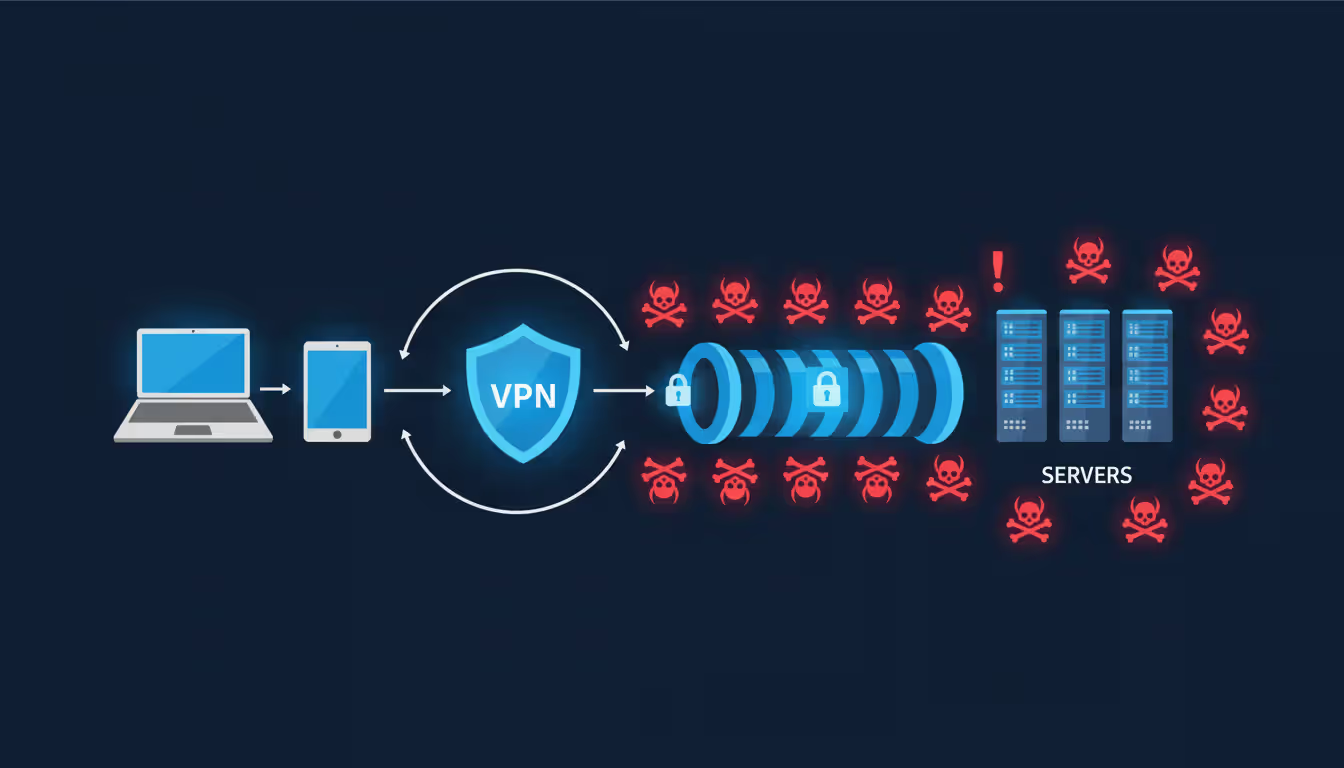
VPNs create encrypted tunnels between user devices and your network. Remote desktop traffic flows through that tunnel, invisible to anyone sniffing network traffic between you and the server. Coffee shop WiFi can't see your keystrokes. Your ISP can't monitor what applications you're running. The attacker on the same network can't intercept your session.
Beyond encryption, VPNs hide your remote desktop servers from internet scanners entirely. Those automated attacks probing port 3389? They never see your servers because the servers aren't exposed. You must connect to the VPN first, authenticate there, then you can attempt RDP. Two authentication gates instead of one.
Site-to-site VPNs link entire networks—your headquarters to your branch office, creating one logical network across physical locations. Remote access VPNs serve individual users connecting from arbitrary locations. Most remote desktop deployments need remote access VPNs, though some larger organizations implement both.
IPsec and SSL/TLS dominate VPN protocols. IPsec operates at the network layer, encrypting everything automatically. Works great, performs well, but sometimes struggles with restrictive corporate firewalls or complex NAT situations. SSL VPNs run over HTTPS (port 443), sailing through firewalls that block everything else. Slightly higher overhead, universally compatible.
WireGuard deserves mention as the modern alternative. Simpler configuration, better performance, smaller attack surface. Growing adoption but not yet universal. If you're building new infrastructure rather than maintaining legacy systems, worth considering.
Split tunneling creates a philosophical debate: should VPN users send all traffic through the corporate network (full tunnel) or only corporate traffic (split tunnel)? Full tunneling gives you complete visibility and control but crushes your bandwidth when 50 remote users try to stream YouTube during lunch. Split tunneling improves performance but means you don't see what users are doing outside corporate resources.
Capacity planning matters more than most administrators expect. Twenty concurrent users at 400 Kbps average per remote desktop session needs roughly 12-15 Mbps when you account for protocol overhead and burst traffic. Undersized VPN appliances bottleneck everything, not just RDP. Budget 50% headroom above peak expected usage. Network equipment is cheap compared to user frustration.
Remote Desktop Printing Solutions
Printing from remote sessions drives administrators crazy. It should be simple—you click Print, the document comes out. Instead you get users complaining that prints are garbled, nothing happens, or mysterious errors about missing drivers.
The complexity comes from physical separation. The application runs on a server, but the printer sits next to the user's desk. RDP includes printer redirection that maps local printers into the remote session, making them appear in the remote printer list. Print jobs travel from server to client through the RDP connection, then output locally.
This works perfectly until it doesn't. The server needs drivers matching the user's printer model. Got a random HP OfficeJet from 2019? The server better have drivers for that exact model. Windows Server 2022 includes common drivers but not everything. Consumer printers, specialized label printers, industrial shipping label printers—these often lack server-compatible drivers.
Universal print drivers solve this for maybe 80% of use cases. Instead of device-specific drivers, you install one universal driver (Microsoft's Easy Print or third-party options like ThinPrint) that speaks standardized PostScript or PCL to most printers. Print quality sometimes suffers, advanced features might not work, but basic document printing becomes reliable.
Bandwidth consumption bites you with large print jobs. A 100-page proposal with embedded images might generate a 30MB print stream. That 30MB travels from server to client through your RDP session over whatever internet connection the user has. On slow DSL or congested WiFi, the entire session freezes while this transfer completes. Users blame RDP for being slow when really it's a massive print job saturating their connection.
Cloud printing sidesteps these issues entirely. Services like PrinterLogic or PaperCut let users send print jobs to cloud infrastructure that routes them directly to network-connected printers. Bypasses the RDP connection, eliminates driver compatibility problems, reduces bandwidth consumption. Requires internet connectivity and introduces dependency on third-party services, but the trade-offs often make sense.
Session printer redirection policies prevent chaos. Don't automatically map every local device—a user's home network might have three printers, two of which are offline or in their neighbor's apartment. Map specific printers users actually need. Set department defaults so people don't constantly ask "which printer should I use?"
Had a client whose support tickets dropped 40% after we stopped auto-redirecting all printers and instead mapped one default per user based on their physical office location. Turns out most confusion came from seeing 15 printer options they didn't recognize.
Common Remote Desktop Hosting Mistakes to Avoid
Same mistakes appear across different organizations like a greatest hits album nobody wants. Learn from others' pain.
Exposing RDP directly to the internet wins the award for most dangerous common practice. Administrators forward port 3389 through their firewall thinking "we have strong passwords." Automated attacks find it immediately. Credential stuffing begins. Eventually someone's reused password from a breached website gets tried. Now attackers are inside your network. This scenario plays out weekly. Always use VPN or gateway servers.
Underestimating bandwidth requirements creates user frustration that's hard to fix retroactively. Administrators provision internet based on previous usage (web browsing, email), then add remote desktop and wonder why everything feels sluggish. Plan for 300-500 Kbps per concurrent user minimum. More for graphics work or video. Twenty users need at least 10 Mbps dedicated with QoS prioritizing interactive traffic over file transfers.
Author: Chloe Bramwell;
Source: baltazor.com
Licensing violations happen when organizations misunderstand Microsoft's model. Windows 10 Pro licenses don't allow multiple simultaneous remote connections. You need Windows Server with RDS CALs (Client Access Licenses) for each user or device. Trying to skip this licensing because "nobody will notice" works until Microsoft's audit team shows up. Back-licensing fees hurt. A lot.
Neglecting backups creates existential risk. Your remote desktop server crashes, taking everyone's desktop environment offline. How fast can you recover? Daily backups of user profiles, application configurations, and system state enable recovery measured in hours instead of days. Test your restore process quarterly—finding out backups are corrupted during an emergency is too late.
Ignoring resource limits lets one user monopolize server resources. A developer running memory-intensive builds or someone with 60 browser tabs open degrades performance for everyone sharing the server. Configure per-user CPU and memory caps. Set session timeouts for idle connections. Monitor resource consumption and address problems before they impact others.
Failing to plan for growth costs more long-term. Deploying barely adequate infrastructure means hitting capacity within months as you add users or applications. Right-sizing requires understanding growth projections and building in headroom. Migrating to larger infrastructure six months after initial deployment wastes time and money. Better to start with 30% extra capacity.
Frequently Asked Questions About Remote Desktop Hosting
How much does remote desktop hosting cost per user?
Depends entirely on what kind of work they're doing and infrastructure choices. Light productivity work (email, Office documents, web apps) on VPS hosting runs $10-20 monthly per user. Demanding applications on dedicated servers cost $30-60 per user per month. Those numbers cover infrastructure only—software licensing adds $5-50 per user depending on what applications they need. Budget another $500-2,000 for professional initial configuration plus ongoing management time.
What's the difference between remote desktop and VPN?
VPNs create encrypted network connections but applications still run on your local device. You VPN to the office network, then access file servers or internal websites from your laptop's browser. Remote desktop runs applications on a server—processing happens remotely, you just see the screen. Most secure setups combine both: users VPN to the network, then connect to remote desktops through that encrypted tunnel. VPN is the secure highway, remote desktop is the destination.
Can I print locally from a remote desktop session?
Yes, through printer redirection that makes your local printers appear in the remote session. Works reliably when you have compatible drivers on the server for your specific printer model. Fails frustratingly with specialized devices needing manufacturer drivers that don't exist for server operating systems. Universal print drivers solve this for most standard printers. Cloud printing services offer an alternative that bypasses driver compatibility entirely by routing print jobs outside the remote desktop connection.
Is multi-factor authentication required for remote desktop?
Not legally mandated for most organizations, but cyber insurance policies increasingly require it for coverage. Compliance frameworks like CMMC for defense contractors or HIPAA for healthcare explicitly mandate MFA for remote access to sensitive systems. Even without formal requirements, MFA is your strongest defense against compromised passwords—which will happen eventually through phishing, credential dumps, or user error. Implementation costs are minimal compared to breach cleanup costs.
How much bandwidth does remote desktop hosting need?
Individual sessions typically consume 200-500 Kbps for office productivity work, jumping to 2-5 Mbps when users view videos or work with high-resolution graphics. Calculate total bandwidth by multiplying concurrent users by per-session consumption, then add 30% overhead for protocol encapsulation and traffic bursts. Twenty concurrent users need approximately 10-15 Mbps of dedicated bandwidth. Insufficient bandwidth creates laggy sessions and frustrated users—budget 50% extra headroom for peak usage spikes and growth.
How long does it take to set up remote desktop hosting?
Basic single-server deployment takes 4-8 hours for experienced administrators: install the OS, configure roles, harden security, create users. Enterprise deployments with redundancy, load balancing, and Active Directory integration require 40-80 hours spread across several weeks. Cloud-based solutions can be operational in hours but still need security configuration and user acceptance testing. Plan for two weeks from initial decision to production deployment for small implementations, four to six weeks for complex environments requiring custom integration.
Remote desktop hosting stops being theoretical the moment users depend on it daily. Get the infrastructure right and it disappears into the background—people work, applications respond quickly, printing happens without tickets to IT. Get it wrong and you're constantly firefighting performance complaints, security incidents, and mysterious failures.
Matching infrastructure to actual requirements matters more than chasing the cheapest option or the most feature-rich platform. VPS hosting serves small teams running standard workloads efficiently. Dedicated servers deliver the consistent performance that demanding applications require. Security configuration isn't optional in 2024's threat landscape—MFA and VPN access represent baseline protections, not nice-to-haves.
The printing challenges, bandwidth calculations, and licensing complexities covered here reflect real implementations, not theoretical possibilities. Address these considerations during planning instead of discovering them three months into production. Budget appropriately for initial setup and ongoing operation. Prioritize security from day one instead of treating it as something to add later.
Done right, remote desktop hosting becomes invisible infrastructure. Users focus on their actual work instead of fighting technology, IT spends time on strategic projects instead of emergency troubleshooting, and management sees productivity gains that justify the investment. Start with clear requirements, implement proper security, and scale thoughtfully as needs grow.
A software defined network (SDN) separates control intelligence from physical equipment, enabling centralized management and programmable network behavior. Discover the three-layer architecture, key components, and how SDN transforms enterprise networking
A complete guide to setting up an intranet for your organization. Covers planning requirements, choosing between cloud and self-hosted platforms, technical setup steps, common mistakes to avoid, and strategies for maintaining and scaling your intranet over time
Private cloud infrastructure dedicates computing resources to a single organization, offering control and compliance advantages over shared public cloud. This guide examines architecture, platform choices, managed services options, and decision criteria for enterprises evaluating private cloud deployment
Network infrastructure failures cost enterprises $9,000 per minute in 2026. Open source network monitoring delivers visibility without licensing fees or vendor restrictions. This guide covers how monitoring tools work, compares popular platforms, and provides implementation strategies for cloud environments
The content on this website is provided for general informational and educational purposes only. It is intended to explain concepts related to cloud computing, computer networking, infrastructure, and modern IT systems.
All information on this website, including articles, guides, and examples, is presented for general educational purposes. Technology implementations may vary depending on specific environments, business needs, infrastructure design, and technical requirements.
This website does not provide professional IT, engineering, or technical advice, and the information presented should not be used as a substitute for consultation with qualified IT professionals.
The website and its authors are not responsible for any errors or omissions, or for any outcomes resulting from decisions made based on the information provided on this website.