Working from your kitchen table used to mean you couldn't reach the files sitting on your office desktop. Those days are gone. Today, you can control your work computer from a beach in Thailand or troubleshoot your parents' PC without buying a plane ticket. The challenge isn't whether remote access is possible—it's figuring out which approach makes sense for your situation without creating security nightmares.
What Is Remote Access and How Does It Work
When we talk about remote access meaning, we're describing any setup that lets you use one device to operate another machine somewhere else. Think of it like having really long cables connecting your keyboard and monitor to a computer in a different building (or continent).
Here's what actually happens: Two pieces—a host machine and whatever device you're using to connect—establish a link through the internet. Your host runs special software listening for connection requests. Your client device sends those requests along with authentication credentials. Once verified, everything you type or click gets packaged up, encrypted, and shot across the network to execute on the remote machine. The screen updates come flying back to display on your device.
People use this constantly. Marketing teams grab presentation files from office servers at 11 PM before client meetings. Help desk technicians watch users demonstrate bugs in real-time rather than trying to decode vague email descriptions. Small business owners check security cameras and point-of-sale systems from vacation. Parents help their college-age kids fix printer drivers without driving three hours.
The underlying protocols handle compression to save bandwidth, encryption to prevent eavesdropping, and error correction when packets get lost in transmission. Type the letter "A" on your keyboard—that keystroke gets encrypted, transmitted, processed on the remote computer, and the resulting screen change returns to you, usually in under 100 milliseconds if you have decent internet.
Types of Remote Access Solutions
You've got choices. Lots of them. Each category solves different problems and creates different headaches.
Author: Logan Kessler;
Source: baltazor.com
Remote Access VPN Solutions
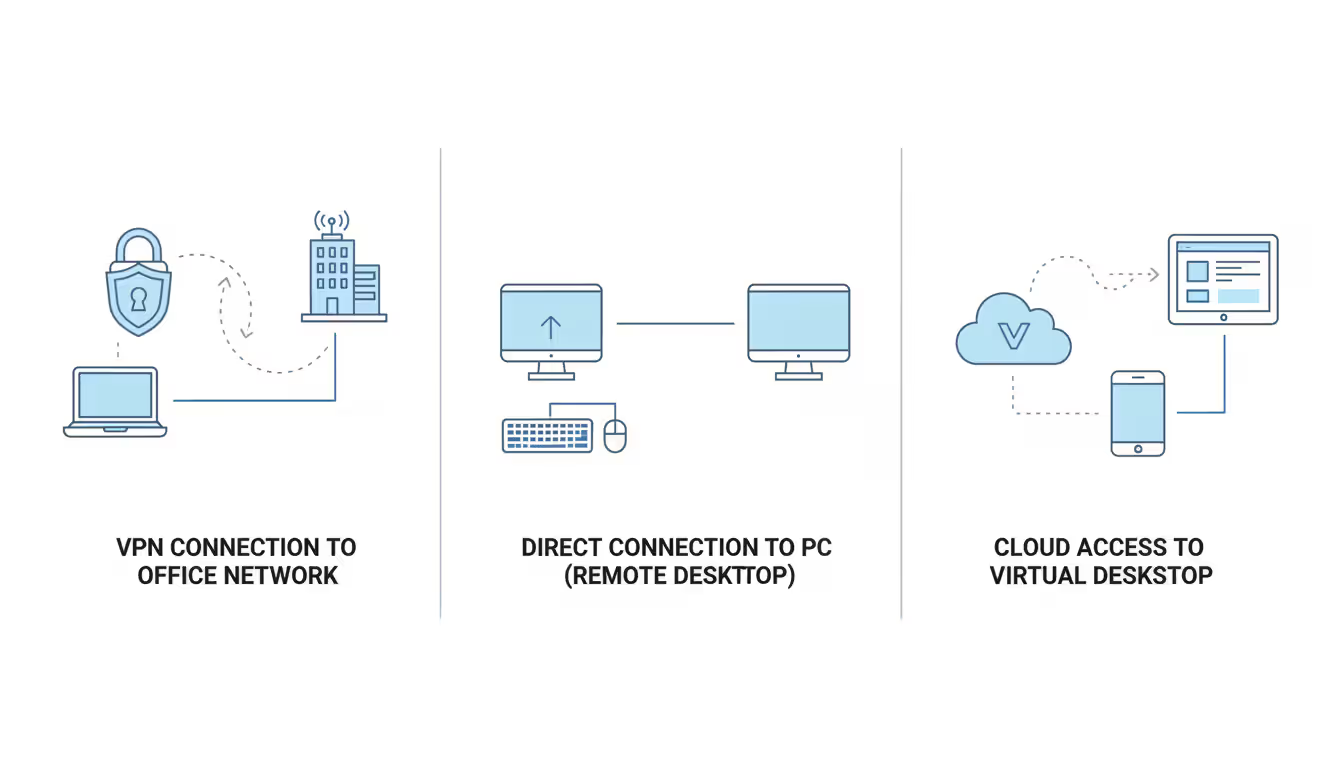
VPNs don't connect you to one specific computer. They connect you to an entire network. Install the client software, authenticate with your credentials, and suddenly your laptop behaves like it's physically plugged into that network's router. Access file shares, use internal web apps, print to office printers—anything someone sitting in the office can do.
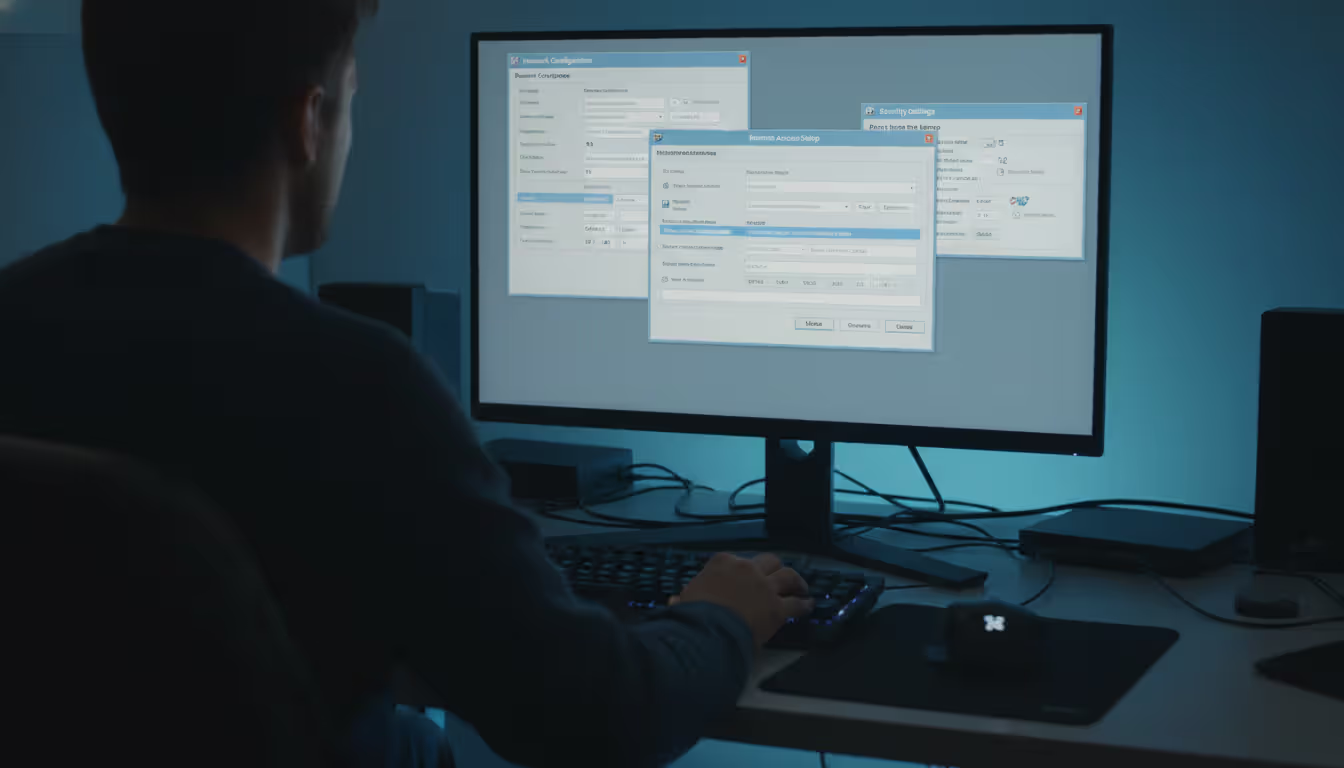
Setting up a remote access VPN solution requires someone who understands networking. You need a VPN gateway (hardware or virtual appliance) at the office, firewall rules permitting traffic, and client configurations that specify which encryption protocols and authentication methods to use. Many businesses use certificates in addition to passwords, adding another setup layer but significantly improving security.
The beauty is comprehensive access without exposing individual services to internet attackers. The frustration is performance—your connection speed matters tremendously since literally all your traffic routes through that tunnel. Streaming a training video means the data travels from the internet to the VPN gateway, through the tunnel to your device, creating unnecessary bottlenecks.
Remote Desktop Programs
These tools give you control of one specific computer's screen. You see its desktop, use its applications, access its local files. Windows comes with Remote Desktop Protocol built in. MacOS includes Screen Sharing. Linux has several options like VNC. These work great on trusted local networks but lack security features needed for internet exposure.
Consumer-friendly alternatives like TeamViewer, AnyDesk, and Chrome Remote Desktop simplify everything. They use intermediary relay servers to establish connections, meaning you don't wrestle with router configurations or dynamic IP addresses. Install on both computers, sign in to your account, and connections happen automatically through the service's infrastructure.
Perfect for tech support or accessing your home computer while traveling. The limitation? You're connecting machine-to-machine, not to networks. The remote computer needs to be powered on and (usually) logged in. If you're accessing multiple office resources, you'll find the VPN approach less cumbersome.
Browser-Based and Cloud Options
Recent approaches flip the model entirely. Rather than connecting to physical machines, you access virtual desktops running in data centers. Amazon WorkSpaces, Azure Virtual Desktop, and similar services provide this. Your company provisions virtual machines in the cloud, assigns them to users, and people connect through web browsers.
No client software installations. No concerns about home network security. Contractors get temporary access without shipping them company laptops. Everything happens in the provider's hardened data centers with professional-grade security monitoring.
The catch is cost and dependency. You're paying monthly per-user fees that continue indefinitely. If Amazon Web Services has an outage, your team can't work regardless of whether their local internet works fine. For organizations with distributed teams and compliance requirements, these trade-offs often make sense. For a five-person startup, they're probably overkill.
How to Choose a Remote Access Program
Start with security or you'll regret it later. Does the solution encrypt connections end-to-end? Can you require two-factor authentication? Where do credentials get stored—on your servers or the vendor's? A free tool that stores your passwords in plaintext on some startup's database isn't free after the inevitable breach.
Think about who's actually using this. Your IT director may love a solution with 47 configuration options and military-grade security. If it confuses everyone else so badly they start texting passwords to each other or emailing files instead, you've made things worse. A moderately secure system people use correctly beats a fortress everyone circumvents.
Platform compatibility sounds boring until your Linux-loving developer can't connect, or the iOS app is so clunky your sales team stops using it. Test on actual devices your team uses daily. Not the devices you wish they used—the ones currently on their desks and in their bags.
Scalability matters for growing businesses. That free tier supporting three users is fantastic until you hire your fourth person. Some vendors charge per device, others per concurrent connection, some use byzantine formulas involving named users versus floating licenses. Read pricing structures carefully and calculate costs at 2x your current size.
Don't forget ongoing effort. A solution requiring twenty hours monthly of IT administration time costs more than a $50/month service that just works. Factor in training time, support tickets, and the hours you'll spend troubleshooting when things break.
Personal use? Grab Chrome Remote Desktop or TeamViewer Free and call it done. Business with compliance requirements? Budget appropriately for enterprise VPN hardware or cloud virtual desktop infrastructure. Five-person company? Probably something in between, prioritizing ease of use.
Setting Up Remote Access to Your Computer
Let's walk through this practically. You'll hit these steps regardless of which tool you pick.
First, prepare the host computer. Stable internet connection—obvious but crucial. Power settings need adjustment because you can't connect to a sleeping computer. Windows loves sleeping after fifteen minutes of inactivity. Disable that. Also disable any settings that turn off hard drives or network adapters to save power.
Install your chosen software on the host. Create an account if the service requires it. Set a genuinely strong password, not "Password123" or your dog's name. Configure which users can connect remotely—creating a dedicated remote access account with limited permissions beats using your administrator account.
Now the painful part: network configuration. Your computer sits behind a router using a private IP address like 192.168.1.105. People on the internet can't reach that directly. Three ways around this:
Use services with automatic NAT traversal (most consumer tools handle this—that's why TeamViewer just works). Set up port forwarding on your router, directing incoming traffic on specific ports to your computer's local IP address. Run dynamic DNS services so you can find your constantly-changing home IP address. Or connect both sides to a common VPN, making network location irrelevant.
Security checklist before you finish: Change default port numbers to avoid automated bot scans. Enable connection logging. Use key files instead of passwords where possible. Create firewall exceptions that permit your remote access traffic without opening everything. Many people configure the software perfectly, then wonder why it doesn't work—Windows Firewall or their router's firewall is silently blocking connections.
Test from outside your network before trusting this for real work. Tether to your phone's hotspot or visit a friend's house and verify you can actually connect. Discovering problems during a relaxed test beats discovering them when you desperately need a file at 3 AM.
Author: Logan Kessler;
Source: baltazor.com
Security Risks and How to Protect Remote Connections
Let's be blunt: remote access to computer systems creates attack surface. You're deliberately poking holes through security boundaries. Done carefully, acceptable risk. Done carelessly, disaster.
Stolen credentials represent the most common problem. Attacker gets your username and password through phishing or database breaches, suddenly they've got your access level. Multi-factor authentication solves this—even with your password, they can't authenticate without the code from your phone. This isn't optional for business use anymore.
Man-in-the-middle attacks happen when someone intercepts your connection and reads or alters the traffic. Encryption prevents this, assuming proper implementation. Verify your solution uses current standards like AES-256. Never accept certificate warnings to "make things work"—those warnings exist for good reasons.
Unpatched software remains a massive problem. Critical vulnerabilities in VPN appliances and remote desktop protocols enable major breaches regularly. The 2019 BlueKeep vulnerability in Windows Remote Desktop? Attackers could take complete control without authentication. Enable automatic updates or subscribe to vendor security bulletins and actually read them.
We're watching attackers specifically target remote access infrastructure because it's become the front door to corporate networks. Companies treating remote access security casually—using default configurations, skipping multi-factor authentication, ignoring patch schedules—they're essentially posting their credentials on forums and wondering why they got hacked
— Sarah Chen
Session hijacking occurs when attackers steal your active authenticated session. Lock your screen when stepping away from connections. Configure automatic timeouts. Don't leave remote sessions running while you grab lunch.
Check access logs monthly at minimum. Look for connections from weird IP addresses, unusual countries, or times you were definitely asleep. Seeing logins from Russia at 4 AM when you live in Texas? Investigate immediately, don't wait.
Remote Access VPN vs Other Methods
Different tools for different jobs. Here's how they compare practically:
Method
Security Level
Ease of Setup
Best Use Case
Typical Cost
VPN Solutions
Excellent when configured properly; poor if misconfigured
Challenging—needs networking knowledge and ongoing maintenance
Teams needing access to multiple internal resources simultaneously
Cloud VPN services: $8-15 monthly per user; Hardware appliances: $500-$5,000 upfront plus annual licensing
Remote Desktop Protocol (RDP)
Decent on private networks; extremely risky if exposed directly to internet
Simple on local networks; complicated and dangerous for internet access without additional protection
Dedicated work computers that stay powered on; support scenarios on trusted networks
Included free with Windows Pro and macOS; requires significant security hardening for business use
Third-Party Software (TeamViewer, AnyDesk)
Good to excellent depending on your configuration choices
Very simple—typically works immediately after installation
Personal remote access; occasional one-off connections; quick support sessions
Free for personal use; Business licenses: $25-85 monthly depending on features
Cloud-Based Solutions
Excellent—security handled by major providers with dedicated teams
Easy for end users; moderate administrative overhead for initial provisioning
$35-80 monthly per user depending on allocated resources and features
Pick VPNs when your team needs simultaneous access to file servers, databases, and internal applications. The learning curve and setup complexity pay off through comprehensive access without exposing individual services.
RDP makes sense for accessing dedicated machines. It's responsive, efficient, and free—but requires serious security work. Never, ever expose RDP directly to the internet on default port 3389. That's asking for compromise. Use it through a VPN or behind a Remote Desktop Gateway.
Consumer remote desktop programs win on convenience. They just work across different network configurations without networking expertise. The trade-off involves trusting the vendor's infrastructure since connections route through their servers. For personal use or small businesses without IT staff, this makes perfect sense. For companies with strict data policies, it's potentially problematic.
Cloud virtual desktops suit distributed teams beautifully and eliminate worries about home network security. You're paying continuously for that convenience and outsourcing control to cloud providers. Calculate costs carefully—they add up faster than expected.
Author: Logan Kessler;
Source: baltazor.com
Common Remote Access Problems and Fixes
"Connection timed out" frustrates people more than almost anything else in technology. Usually means network problems. Check obvious things first: Is the host computer actually on? Is it connected to the internet? Did Windows Update restart it while you weren't looking?
Verify required services are running. Remote Desktop needs the "Remote Desktop Services" service active. Third-party programs need their background processes running. Check Task Manager or Activity Monitor to confirm.
Firewalls cause half of connection failures. Windows Firewall, router firewalls, antivirus software firewalls—they all love blocking things. Temporarily disable them systematically to isolate the culprit. Never leave them permanently disabled, but this identifies what's blocking you.
Slow, laggy connections make remote access miserable. Usually insufficient upload bandwidth on the host's internet connection is the culprit. Your cable internet might advertise "100 Mbps" but that's download speed. Upload is often 5-10 Mbps. Streaming a full HD desktop over that creates lag. Reduce color depth to 16-bit, lower resolution, disable background images and animations. Also stop streaming Netflix simultaneously—bandwidth matters from both ends.
Authentication failures often involve typos or account lockouts after failed attempts. Some systems distinguish between local accounts and domain accounts—make sure you're using the right format. Domain accounts typically need "DOMAIN\username" format. If using SSH keys or certificates, verify file permissions haven't changed.
Black screens or display glitches happen when graphics drivers conflict with remote access software. Gaming PCs with multiple GPUs cause this frequently. Try connecting in Safe Mode or with basic VGA graphics settings. Some programs have alternate screen capture methods in advanced options—experiment with those.
Clipboard sharing stops working seemingly randomly. Usually security policies or antivirus software blocking it. Enterprise deployments often disable clipboard deliberately to prevent data leakage. If you control both machines, dig through settings looking for clipboard options. They're often buried three menus deep.
When all else fails and the problem makes no sense, restart everything. Both computers, your router, everything. This resets network states, clears temporary glitches, and fixes a shocking number of mysterious problems.
Frequently Asked Questions About Remote Access
Is remote access safe for personal computers?
Safety depends entirely on your implementation, not the technology itself. Using strong passwords, enabling two-factor authentication, keeping software updated, and choosing reputable programs makes it reasonably safe. The dangerous situations involve leaving remote access enabled with default passwords (or no password), installing sketchy free software that contains malware, or exposing services directly to the internet without proper security. For personal use with mainstream tools like Chrome Remote Desktop or Windows Remote Desktop behind a VPN, the risk is acceptable for most people.
Do I need a VPN for remote access?
Not necessarily—VPN is one type of remote access, not a requirement for all remote access. Connecting to a single computer works fine with remote desktop software. However, accessing multiple network resources, meeting corporate security policies, or adding encryption to otherwise unencrypted protocols might require a VPN. Personal scenarios rarely need dedicated VPNs. Business scenarios with compliance requirements almost always do. It depends on what you're accessing and who's setting the rules.
Can I remotely access my computer from my phone?
Absolutely—iOS and Android apps exist for nearly every remote access solution. The experience varies wildly though. Checking a file or restarting a service works fine. Complex tasks requiring precise mouse control or keyboard shortcuts quickly frustrate on a six-inch touchscreen. Some programs optimize their mobile interfaces better than others. TeamViewer's mobile app handles touch gestures reasonably well. Trying to use Photoshop remotely on your phone? Miserable experience. Consider mobile use cases carefully when selecting solutions.
What's the difference between remote access and remote desktop?
Remote access describes the broad concept of connecting to distant computers or networks from somewhere else. Remote desktop specifically means controlling another computer's graphical desktop interface. You're seeing its screen and controlling it. Remote access encompasses remote desktop plus other approaches like VPN (which gives network access without showing you someone's desktop), SSH command-line access, or browser-based access to specific applications. Remote desktop is one subset of remote access methods.
How much does a remote access solution cost?
Pricing runs from zero to tens of thousands depending on your needs. Chrome Remote Desktop costs nothing. TeamViewer Free works for personal use. Business licensing runs $25-50 monthly per user typically. Enterprise VPN hardware appliances cost $5,000-50,000 for capable units, plus annual support contracts. Cloud virtual desktop services charge $35-80 per user per month. The right answer depends on scale—personal occasional use should cost nothing, small business might budget $50-100 monthly, large enterprise might spend six figures annually on comprehensive solutions.
Does remote access slow down my computer?
The host computer experiences minimal performance impact—usually 3-5% CPU usage for the remote access service itself. Running applications remotely doesn't slow them down significantly on the host. However, your experience as the remote user will feel slower than sitting at the machine because screen updates travel over the network. Complex graphics or video suffer noticeably. Your local device uses some resources for decryption and rendering the remote screen, but modern computers handle this easily. The bottleneck is almost always network latency and bandwidth, not computer performance.
Remote access has moved from specialized IT tool to everyday necessity. The range of available solutions means you can find something matching virtually any requirement, technical skill level, and budget—from free consumer tools to enterprise infrastructure supporting thousands of simultaneous connections.
The central tension involves balancing convenience against security and cost. Consumer remote desktop programs provide the gentlest learning curve at the expense of some control and potentially trusting third-party infrastructure. VPN solutions offer comprehensive network access but demand networking knowledge and configuration effort. Cloud virtual desktops maximize flexibility while creating ongoing subscription costs and vendor dependencies.
Security can't be an afterthought you address later. Every remote access implementation deliberately creates potential vulnerabilities requiring active management. Strong authentication isn't optional. Encryption isn't optional. Regular updates and access monitoring aren't optional. The convenience of grabbing files from anywhere becomes worthless after your first breach.
Begin with honest assessment of your actual needs: Are you connecting to one machine or entire networks? How frequently? From which devices? How sensitive is the data involved? Answer these truthfully rather than aspirationally, and appropriate solutions become obvious. Test thoroughly before depending on remote access for critical work, and maintain backup plans for inevitable technology failures at inconvenient moments.
The remote access landscape keeps evolving—security improvements, better mobile experiences, tighter cloud integration. Staying somewhat informed about capabilities and emerging threats helps ensure your setup remains functional and secure as requirements shift. You don't need to become an expert, but understanding the basics prevents most problems people encounter.
Software-defined WAN transforms network architecture by enabling intelligent traffic routing across multiple connection types. Learn how SD-WAN works, security considerations, deployment options, and when your business should adopt this technology for improved performance and cost savings
Multi cloud architectures now power 87% of enterprise infrastructure strategies. This comprehensive guide examines how multi cloud works, why businesses adopt it, key components including platforms, storage, data architecture, and IAM, plus practical strategies for implementation and management
Hybrid cloud combines on-premises infrastructure with public cloud services through secure, orchestrated connections. This comprehensive guide covers hybrid cloud architecture, common deployment models, security best practices, implementation challenges, and when organizations should choose a hybrid cloud environmen
Building an intranet from scratch might sound intimidating, but with the right approach and planning, even small organizations can deploy a secure internal network that transforms how teams collaborate. This comprehensive guide walks through every step from planning to implementation
The content on this website is provided for general informational and educational purposes only. It is intended to explain concepts related to cloud computing, computer networking, infrastructure, and modern IT systems.
All information on this website, including articles, guides, and examples, is presented for general educational purposes. Technology implementations may vary depending on specific environments, business needs, infrastructure design, and technical requirements.
This website does not provide professional IT, engineering, or technical advice, and the information presented should not be used as a substitute for consultation with qualified IT professionals.
The website and its authors are not responsible for any errors or omissions, or for any outcomes resulting from decisions made based on the information provided on this website.