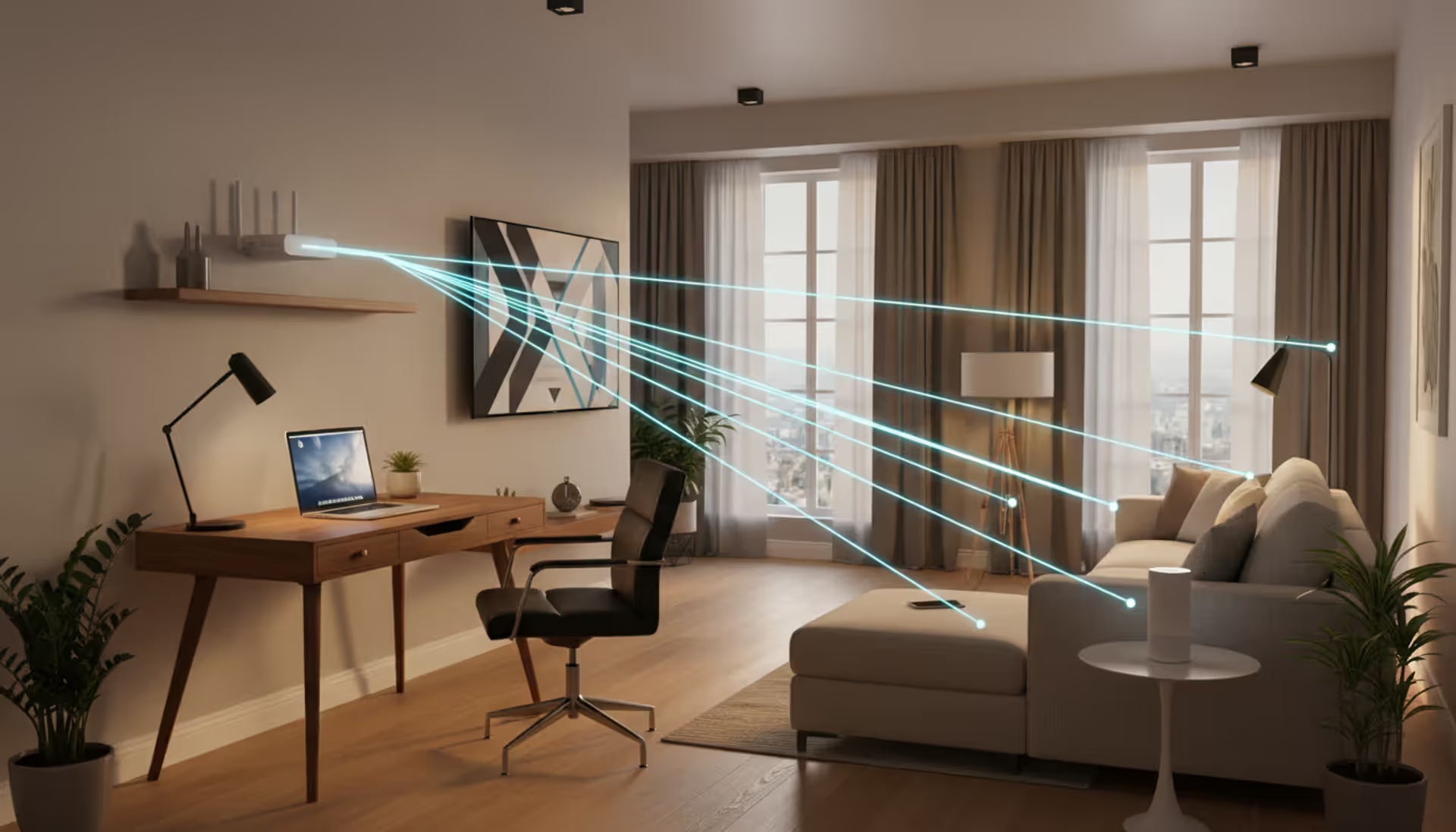
Modern living room with a Wi-Fi router on a shelf sending wireless signal lines to a laptop, smartphone, smart TV, and smart speaker in a cozy home interior
A properly configured home network forms the backbone of modern household connectivity. Whether you're streaming 4K content across multiple rooms, running smart home devices, or working remotely, understanding how to build and maintain your network infrastructure determines the quality of your digital experience.
What Is a Home Network and How Does It Work?
A home network connects all your internet-enabled devices through a central hub, allowing them to communicate with each other and access the internet. The basic architecture includes three core components: a modem that translates your ISP's signal, a router that directs traffic between devices, and the endpoints themselves—laptops, phones, smart TVs, and IoT gadgets.
Data flows through your network in packets. When you request a website, your device sends that request through the router, which forwards it via the modem to your internet service provider. The response follows the same path in reverse. Modern routers handle this process for dozens of devices simultaneously, prioritizing traffic based on configured rules.
Most households now operate dual-band or tri-band wireless networks. The 2.4 GHz band offers better range but slower speeds, while 5 GHz provides faster throughput over shorter distances. Newer Wi-Fi 6E routers add a 6 GHz band, reducing congestion in homes with many connected devices. Wired Ethernet connections still deliver the most reliable performance for stationary equipment like gaming consoles or desktop computers.
Network topology matters more than many realize. A star topology—where all devices connect to a central router—works for most homes. Larger properties benefit from mesh configurations, where multiple access points create overlapping coverage zones and hand off devices seamlessly as you move through the building.
Planning Your Home Network Installation
Before purchasing equipment or running cables, assess your specific requirements. Walk through your home and note where you'll need connectivity. Dead zones in basements or second floors often require range extenders or mesh nodes. Building materials affect signal propagation—concrete walls and metal framing block wireless signals more than drywall.
Create an inventory of devices that will connect to your network. Count not just obvious items like phones and laptops, but also smart thermostats, security cameras, voice assistants, and streaming devices. A typical household in 2026 runs 25-35 connected devices. Each one consumes bandwidth and requires an IP address from your router's DHCP pool.
Bandwidth requirements vary dramatically by usage pattern. A single 4K stream needs roughly 25 Mbps, while video conferencing uses 3-5 Mbps per participant. Gaming demands low latency more than raw speed—15-25 Mbps suffices for most titles, but ping times under 50ms matter more than throughput. Add a 30% buffer to your calculated needs to account for simultaneous usage and future growth.
The wired versus wireless decision involves trade-offs. Ethernet cables deliver consistent speeds without interference, but installation requires drilling holes or running surface-mount conduits. Wireless offers convenience and flexibility at the cost of potential dead spots and variable performance. A hybrid approach works best—wire stationary devices that need reliability, use wireless for mobile gadgets.
Author: Ethan Norwood;
Source: baltazor.com
Step-by-Step Home Network Setup Process
Position your router centrally and elevated. Routers broadcast signals in all directions, so placing one in a basement corner wastes half its range. Mount the device on a second floor if you have one, or at least place it on a shelf rather than the floor. Keep it away from microwaves, cordless phones, and thick walls that block signals.
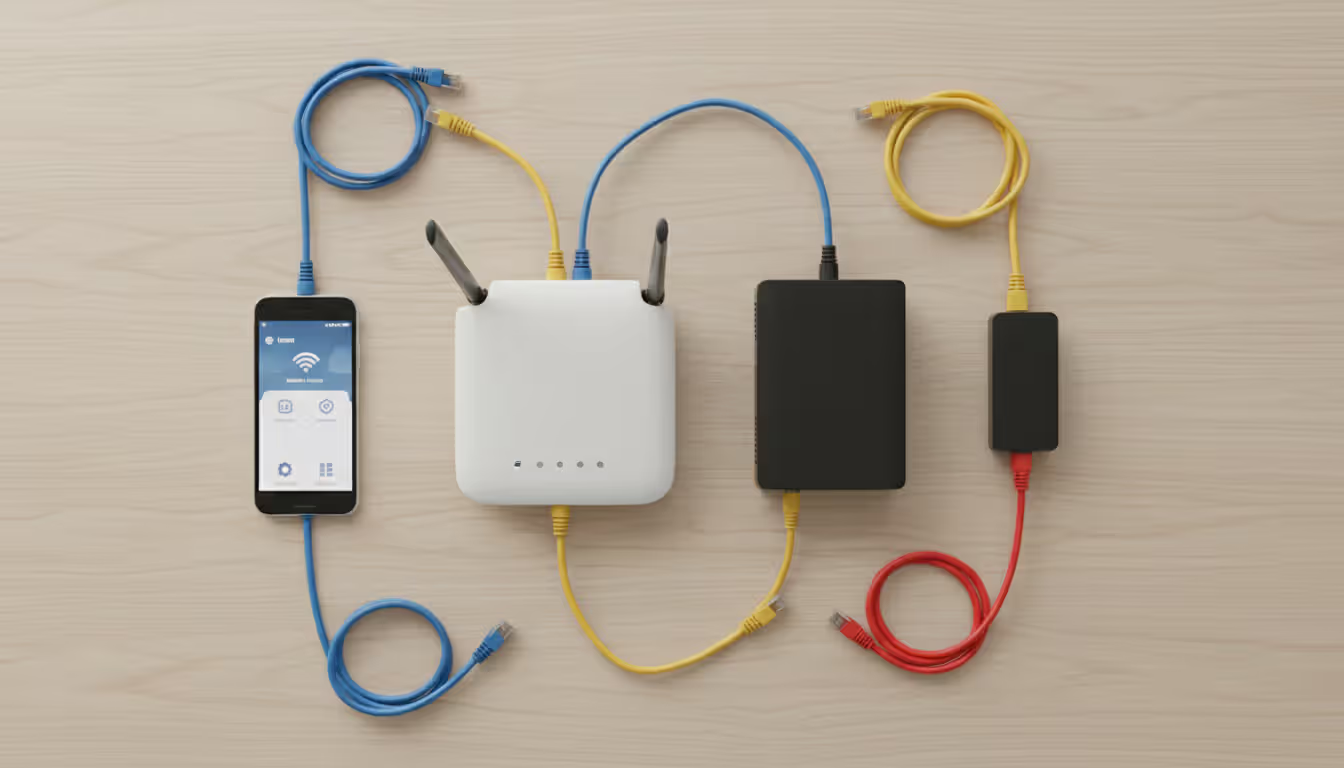
Connect your modem to the cable or fiber line entering your home. Most ISPs provide specific instructions for their equipment. Once the modem shows a solid connection light, plug an Ethernet cable from its output port to your router's WAN (wide area network) input. Power on both devices and wait three minutes for them to establish a connection.
Access your router's admin interface by typing its IP address into a web browser—typically 192.168.1.1 or 192.168.0.1. The default credentials appear on a sticker on the router itself. Modern routers often include setup wizards that guide you through basic configuration, but manual setup gives you more control.
Creating a Home Network Setup Diagram
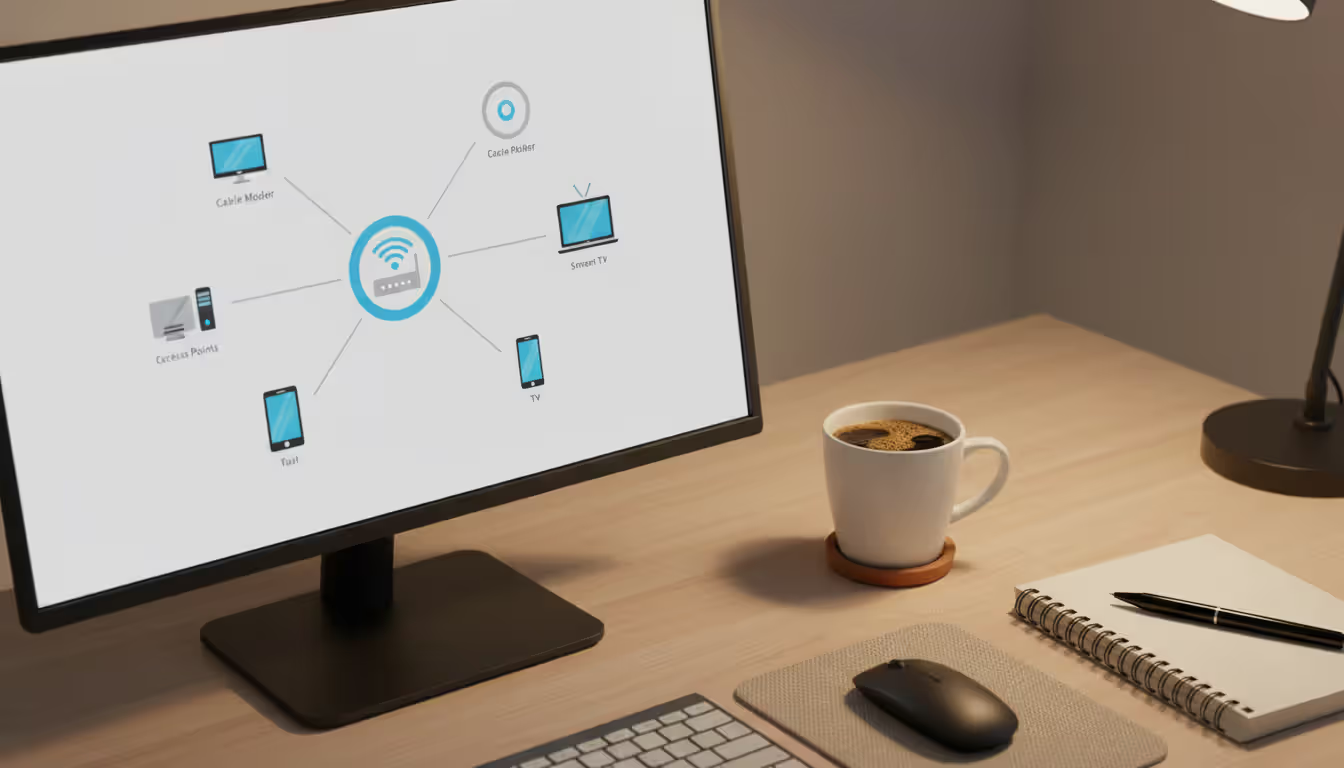
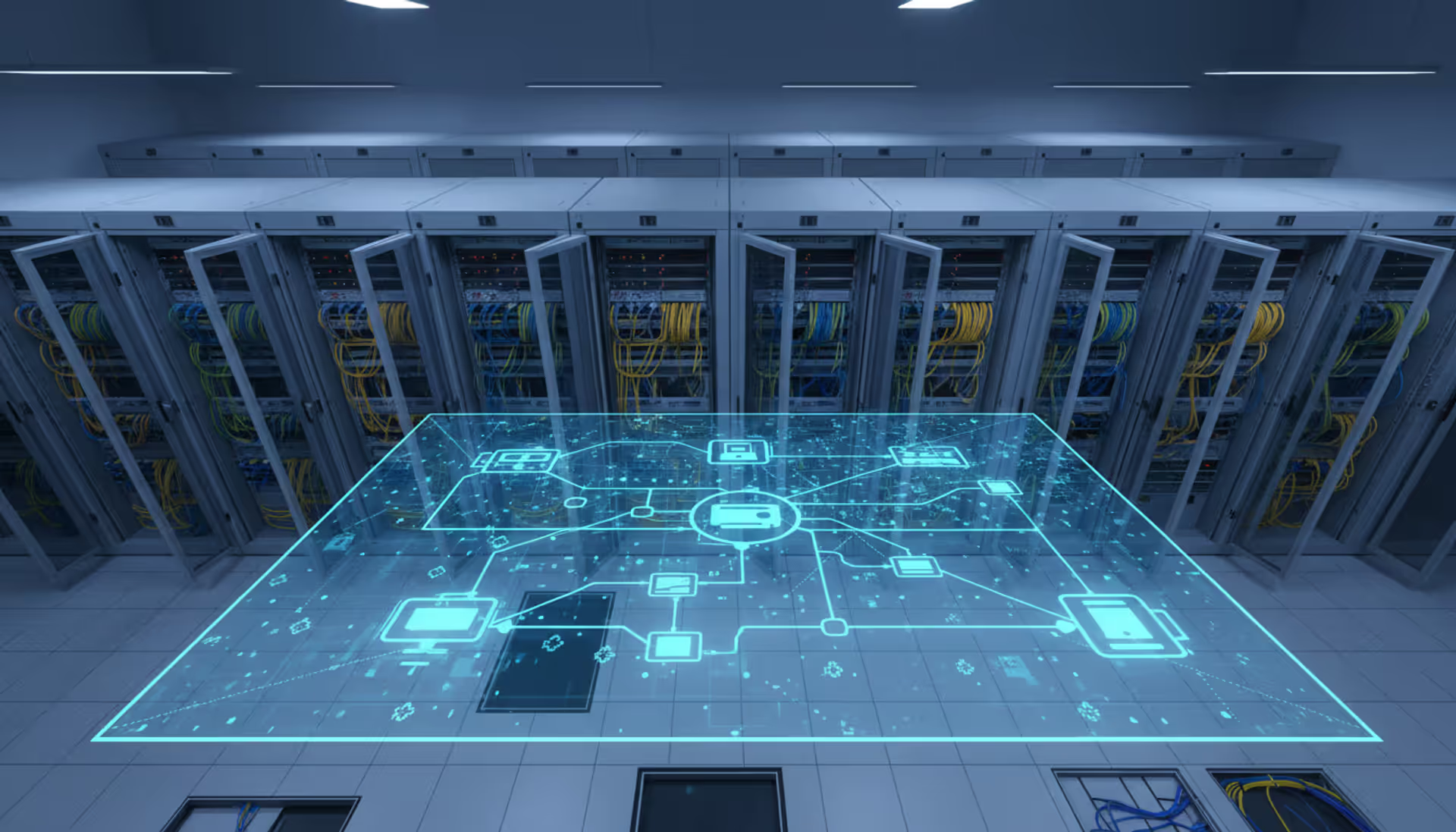
Document your network architecture before you have ten devices connected and can't remember what goes where. A simple diagram should show the modem, router, any switches or access points, and major wired connections. Note which Ethernet ports connect to which rooms if you've run cables through walls.
Free tools like Draw.io or Lucidchart offer network diagram templates. Include IP addresses for static devices, wireless SSID names, and the locations of mesh nodes or range extenders. This diagram becomes invaluable when troubleshooting connectivity issues six months later or when explaining your setup to a technician.
Mark channel assignments if you've manually configured them. Overlapping Wi-Fi channels cause interference—channels 1, 6, and 11 on the 2.4 GHz band don't overlap, while 5 GHz offers more non-overlapping options. A home network diagram that includes this information helps you avoid conflicts as you add devices.
Author: Ethan Norwood;
Source: baltazor.com
Configuring Network Settings and Passwords
Change the default admin password immediately. Botnets scan for routers with factory credentials and compromise thousands of networks daily. Use a unique password at least 16 characters long, mixing letters, numbers, and symbols. Store it in a password manager—you'll need it infrequently enough to forget it, but often enough to get frustrated hunting for it.
Set a strong WPA3 password for your wireless network if your router supports it. WPA2 remains acceptable for older devices that can't handle WPA3, but avoid WEP entirely—it's been broken for years. Your Wi-Fi password should differ from your admin password and shouldn't contain dictionary words or personal information.
Configure your SSID (network name) to something identifiable but not revealing. "Smith Family Network" tells potential attackers whose house they're targeting. "5G_Tower_Test" works better—memorable for you, meaningless to others. Disable SSID broadcast if you want extra obscurity, though this provides minimal security benefit and complicates connecting new devices.
Enable the router's firewall and disable WPS (Wi-Fi Protected Setup). WPS has known vulnerabilities that allow brute-force attacks. Set up a guest network for visitors and IoT devices—this isolates potentially insecure smart home gadgets from computers containing sensitive data.
Best Home Network Monitoring Tools for Performance Tracking
Network monitoring tools reveal bandwidth hogs, detect intrusions, and identify performance bottlenecks before they become critical problems. The right tool depends on your technical comfort level and specific needs.
Deep packet inspection, protocol analysis, capture filters
Free (open source)
Network professionals and troubleshooting
NetSpot
Mac, Windows
Wi-Fi heat mapping, channel analysis, signal strength surveys
Free / $49-$199
Optimizing wireless coverage and placement
GlassWire excels at showing which applications consume bandwidth. It displays current usage in real-time and maintains historical records, making it easy to spot unusual patterns. The firewall component alerts you when new devices join your network or when existing devices attempt unexpected connections.
PRTG suits larger homes or small offices with multiple subnets and VLANs. Its sensor-based architecture monitors everything from bandwidth usage to device uptime. The learning curve is steeper, but the depth of information available surpasses simpler tools. The free version's 100-sensor limit covers most residential networks comfortably.
Fing specializes in network discovery and device fingerprinting. It identifies every connected device, often determining manufacturer and model. The security scanning feature checks for open ports and vulnerable services. Mobile apps make it convenient to audit your network from a phone while walking around your property.
Wireshark operates at a lower level than other tools, capturing and analyzing individual packets. Most home users won't need this granularity, but it's invaluable when diagnosing specific protocol issues or investigating suspicious traffic. The interface intimidates beginners, but numerous tutorials exist online.
A home network isn’t just a convenience layer anymore—it’s critical infrastructure for daily life. The difference between a network that ‘works’ and one that’s properly designed shows up in everything from video call reliability to long-term security. In 2026, performance, coverage, and protection have to be planned, not assumed.
— Daniel Brooks
Using a Home Network Analyzer to Troubleshoot Issues
Network analyzers examine traffic patterns, signal strength, and protocol behavior to pinpoint problems. They work by capturing data as it flows through your network and presenting it in analyzable formats. Some focus on wireless performance, others on wired connections or application-layer issues.
Common problems detected by analyzers include channel interference, where neighboring networks crowd the same frequencies. An analyzer displays nearby SSIDs, their signal strengths, and channel assignments. Switching to a less congested channel often resolves intermittent dropouts and slow speeds.
Packet loss appears as gaps in captured data streams. Analyzers calculate loss percentages and help identify whether the problem exists in your local network or stems from your ISP. Consistent 2-3% packet loss might go unnoticed during web browsing but ruins VoIP calls and video conferences.
DNS resolution failures cause websites to load slowly or not at all, even when your internet connection works fine. Analyzers show DNS query times and can reveal when your ISP's DNS servers respond slowly. Switching to public DNS providers like Cloudflare (1.1.1.1) or Google (8.8.8.8) often improves responsiveness.
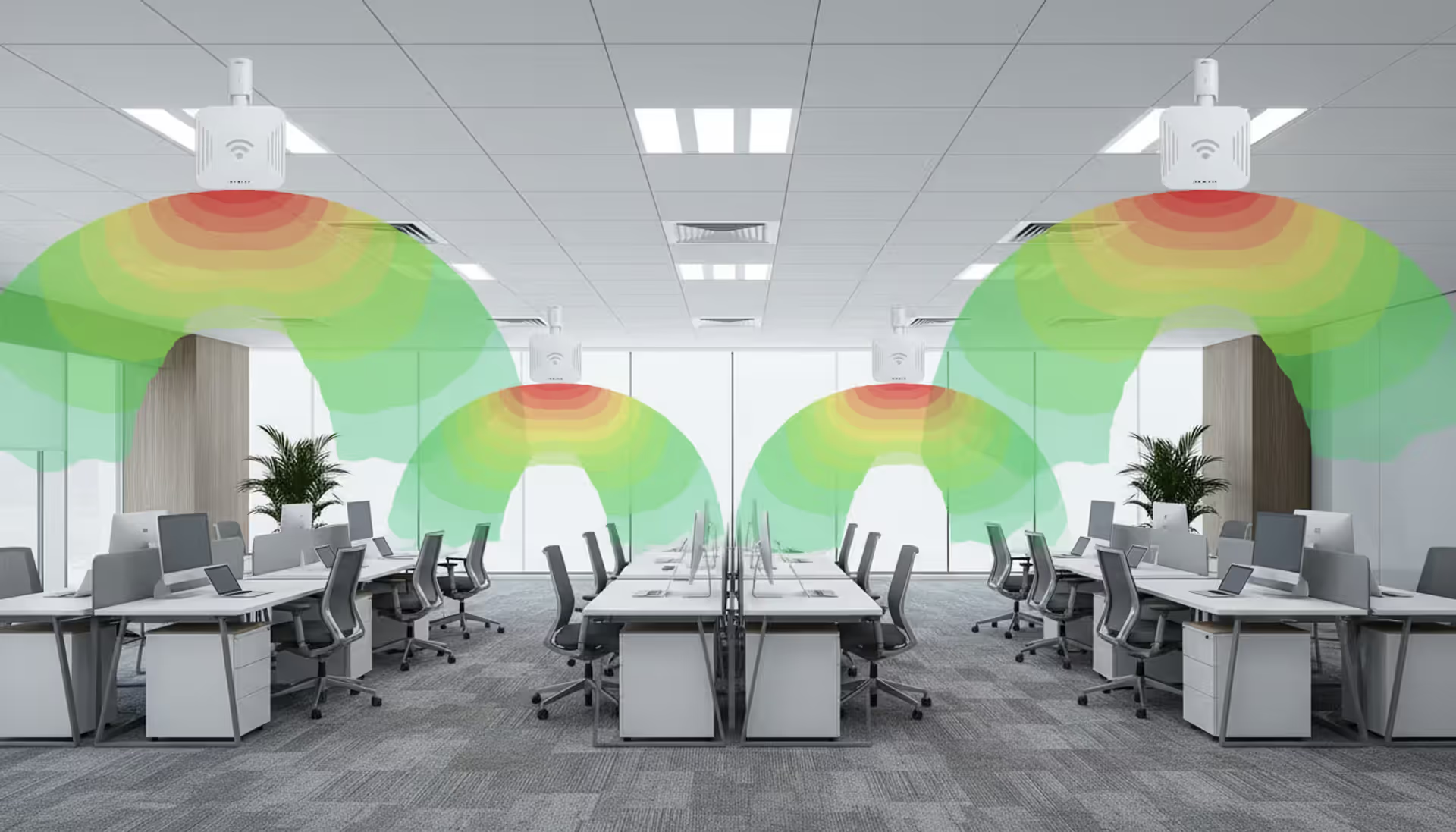
Beginners should start with tools like WiFi Analyzer (Android) or NetSpot. These display wireless signal strength as you walk through your home, revealing dead zones and interference sources. The visual heat maps make it obvious where to add access points or reposition your router.
Advanced users benefit from Wireshark or tcpdump for protocol-level analysis. These tools capture everything—HTTP requests, DNS queries, DHCP negotiations. Filters help narrow millions of packets to relevant traffic. Learning to read packet captures takes time but provides unmatched diagnostic power.
Common Home Network Setup Mistakes to Avoid
Author: Ethan Norwood;
Source: baltazor.com
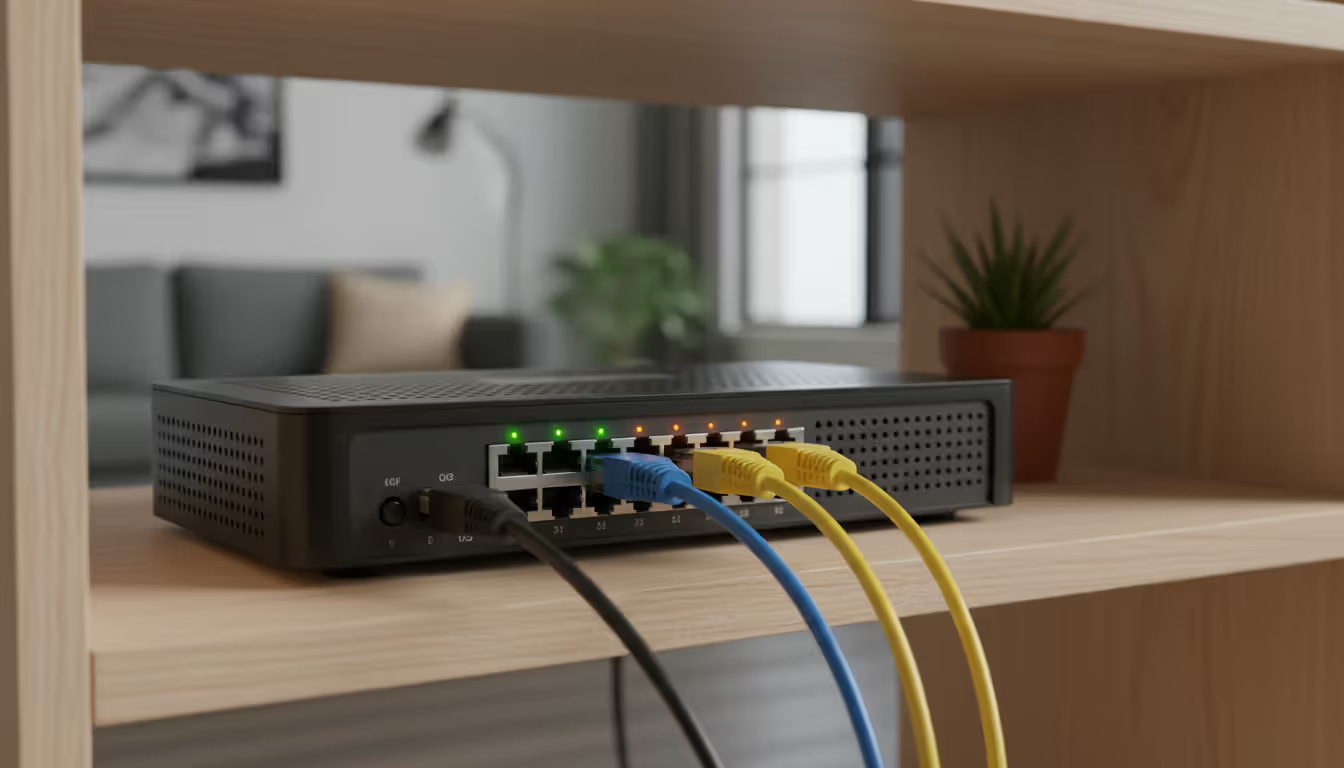
Placing routers in cabinets or closets seems tidy but kills performance. Wireless signals need line-of-sight paths to devices. That cabinet door blocks and reflects signals, creating dead zones. If aesthetics matter, choose a router with external antennas you can position for optimal coverage, or invest in a mesh system with more attractive nodes.
Weak passwords remain the most common vulnerability. "Password123" or your street address takes seconds to crack. Attackers don't need to be in your driveway—wireless signals extend 300 feet or more. Use a password generator and store the result in a password manager. The inconvenience of typing a complex password once every few months beats the catastrophe of a compromised network.
Outdated firmware contains known vulnerabilities that attackers actively exploit. Router manufacturers release updates to patch security holes and improve performance, but updates don't install automatically on many models. Check for firmware updates quarterly, or enable automatic updates if your router supports them. This single step prevents the majority of router-based attacks.
Insufficient bandwidth planning causes frustration when multiple family members compete for limited capacity. That 100 Mbps connection seemed adequate until three people started video calls simultaneously while a fourth streamed a movie. Calculate your peak usage scenarios and add headroom. Upgrading internet speed costs less than the productivity lost to buffering and dropped calls.
Ignoring Quality of Service (QoS) settings lets background downloads starve time-sensitive applications. Configure your router to prioritize video calls and gaming over file transfers. Most modern routers include preset QoS profiles for common scenarios. Spend fifteen minutes configuring this feature and avoid arguments about whose activity is slowing down the network.
Using a single wireless band when your router supports multiple frequencies leaves performance on the table. Connect devices that support 5 GHz to that band, reserving 2.4 GHz for older gadgets and those far from the router. This segregation reduces congestion and maximizes throughput for capable devices.
Frequently Asked Questions About Home Networks
How long does home network installation take?
Basic setup with a single router takes 30-45 minutes for someone with moderate technical skills. This includes physical connections, accessing the admin interface, changing passwords, and configuring wireless settings. Running Ethernet cables through walls adds several hours depending on cable length and wall complexity. Mesh networks with multiple nodes require an additional 15-20 minutes per node for placement and configuration. Budget a full afternoon for your first installation to avoid rushing through security settings.
Do I need professional help to set up a home network?
Most people can handle standard installations without professional help. Router manufacturers design setup wizards for non-technical users, and online videos demonstrate each step. Consider hiring a professional if you're running cables through finished walls, configuring VLANs for network segmentation, or integrating business-grade equipment with advanced features. The cost of professional installation ($150-$400 for basic setups) might be worthwhile if you value time over money or feel uncomfortable with technology.
What's the difference between a modem and a router?
A modem modulates and demodulates signals between your ISP's network and your home, translating between different communication formats. It connects directly to your cable line, fiber terminal, or phone jack. A router directs traffic between devices on your local network and manages the connection to the internet through the modem. Many ISPs now provide combination modem-router units, but separate devices offer more flexibility and easier upgrades. You can replace a router without changing modems, and vice versa.
How many devices can connect to my home network?
Consumer routers typically handle 250+ connected devices, though performance degrades well before reaching that limit. Practical limits depend on router quality and network activity. A basic router might struggle with 20-30 active devices streaming or transferring files simultaneously. Higher-end models manage 50-75 devices comfortably. The DHCP address pool size also matters—routers default to 100-150 available IP addresses, though you can expand this range in settings. Most households hit bandwidth limits before reaching device count limits.
Why is my home network slow?
Slow networks stem from multiple potential causes. Insufficient bandwidth from your ISP creates bottlenecks when multiple devices compete for limited capacity. Check actual speeds using fast.com or speedtest.net—if you're getting what you pay for, the problem lies elsewhere. Wireless interference from neighboring networks, especially on crowded 2.4 GHz channels, reduces throughput. Old routers using outdated Wi-Fi standards (802.11n or earlier) can't deliver modern speeds. Background downloads, malware, or dozens of browser tabs consume bandwidth invisibly. Use a network monitoring tool to identify which devices or applications are consuming resources.
What security settings should I enable?
Enable WPA3 encryption if all your devices support it, or WPA2 for mixed device environments. Change default admin credentials immediately—use a unique password stored in a password manager. Enable the router's built-in firewall and disable remote management unless you specifically need it. Turn off WPS, which has known vulnerabilities. Create a separate guest network for visitors and IoT devices to isolate them from computers containing sensitive data. Enable automatic firmware updates if available, or set a quarterly reminder to check manually. Consider disabling SSID broadcast for your main network, though this provides minimal security benefit. Enable MAC address filtering only if you rarely add new devices—it's tedious to maintain and provides limited protection against determined attackers.
Building a reliable home network requires more than plugging in a router and hoping for the best. The planning phase—assessing coverage needs, inventorying devices, and calculating bandwidth requirements—prevents expensive mistakes and frustrating dead zones. Proper installation, from router placement to security configuration, establishes a foundation that serves you for years.
Regular monitoring with appropriate tools catches problems early, before they escalate from minor annoyances to critical failures. Whether you choose simple visual bandwidth monitors or deep packet analyzers depends on your technical comfort level and network complexity. The key is establishing a monitoring routine and actually reviewing the data periodically.
Security deserves ongoing attention, not just initial setup. Firmware updates, password changes, and periodic security audits protect your network from evolving threats. The fifteen minutes spent quarterly on maintenance prevents the hours or days required to recover from a compromised network. Your home network connects you to work, entertainment, and communication—treat it as the critical infrastructure it has become.
Deploying wireless networks without planning software risks coverage gaps and expensive rework. This guide explains how RF modeling tools predict signal behavior, recommend access point placement, and validate designs before installation—saving time and money across small business and enterprise deployments
Network topology defines how devices connect and communicate in your infrastructure. This guide covers topology types (star, mesh, ring, tree, hybrid), creating accurate network topology diagrams, choosing mapping tools, and avoiding common planning mistakes that impact performance and reliability
Network downtime costs US businesses $9,000 per minute. This comprehensive guide covers network management fundamentals, deployment models, key features, provider selection, and solutions to common challenges for modern IT infrastructure
Network diagrams map how devices connect and communicate in your infrastructure. This guide covers everything from basic diagrams to professional documentation, including tool selection, templates, and best practices that prevent costly troubleshooting delays
The content on this website is provided for general informational and educational purposes only. It is intended to explain concepts related to cloud computing, computer networking, infrastructure, and modern IT systems.
All information on this website, including articles, guides, and examples, is presented for general educational purposes. Technology implementations may vary depending on specific environments, business needs, infrastructure design, and technical requirements.
This website does not provide professional IT, engineering, or technical advice, and the information presented should not be used as a substitute for consultation with qualified IT professionals.
The website and its authors are not responsible for any errors or omissions, or for any outcomes resulting from decisions made based on the information provided on this website.