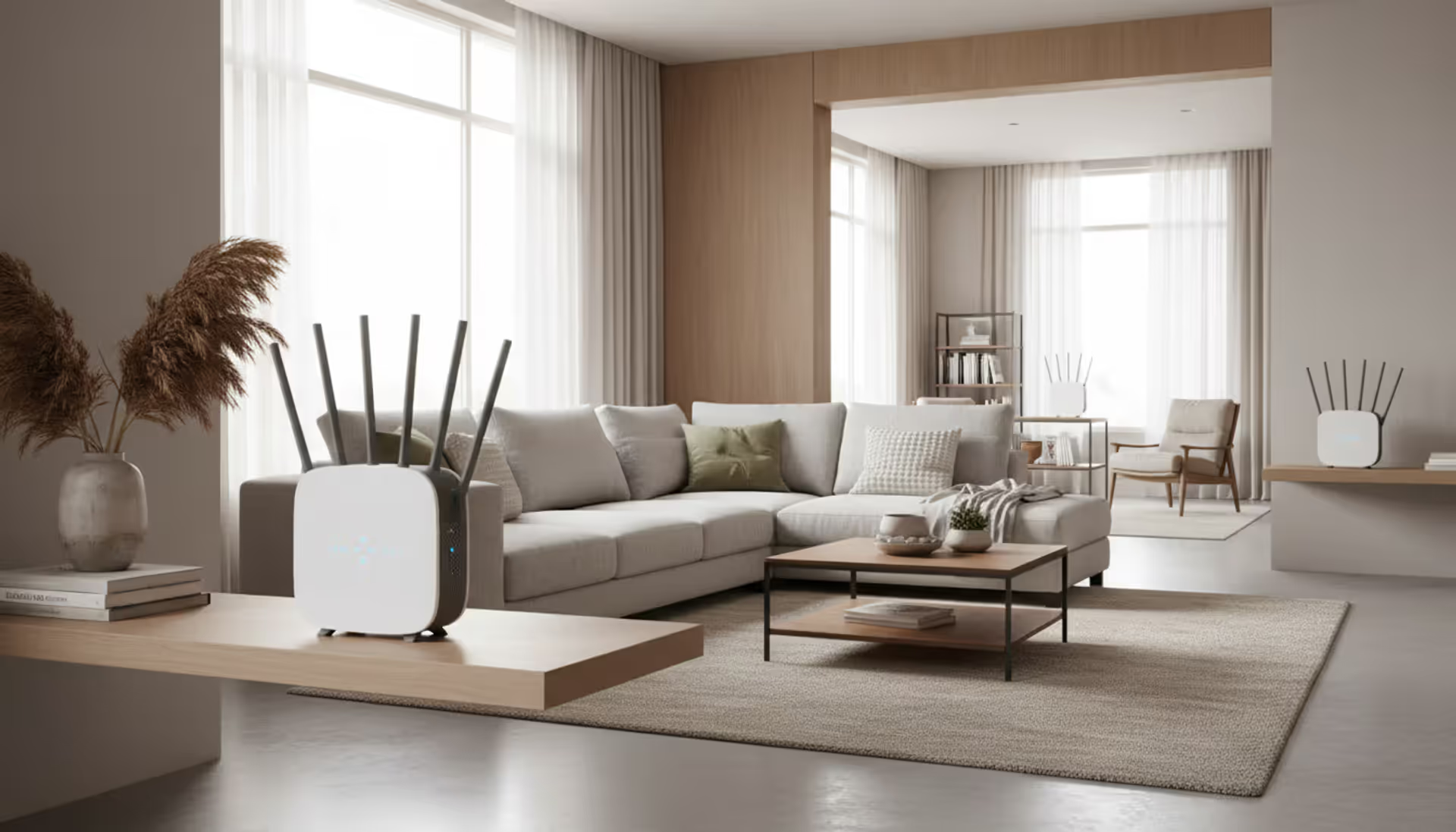
Yes, you can absolutely have two routers in a house. Many homeowners add a second router to eliminate WiFi dead zones, support more connected devices, or separate network traffic. The setup requires proper configuration to avoid IP conflicts and ensure both routers communicate effectively without interfering with each other.
The process isn't complicated, but understanding how routers interact within your home network prevents frustrating connectivity issues down the road.
Why You Might Need Two Routers at Home
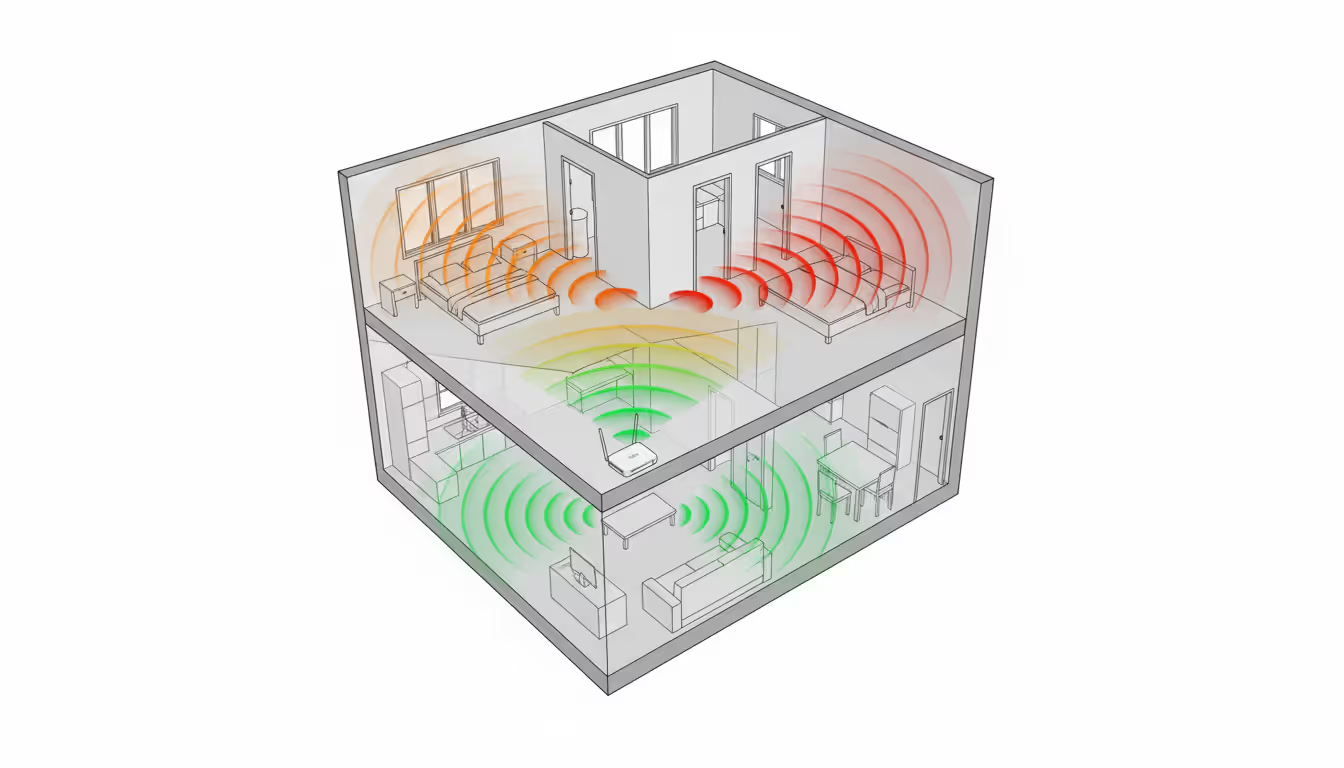
Large homes present the most obvious case for multiple routers. A 3,000-square-foot house with multiple floors often leaves bedrooms or basements with weak signals when relying on a single router placed near the cable entry point. Concrete walls, metal ductwork, and distance all degrade WiFi performance.
Device overload creates another common scenario. Modern households run 20-30 connected devices simultaneously—smartphones, tablets, smart TVs, security cameras, thermostats, and voice assistants. A single router handling this many connections can become overwhelmed, causing slowdowns even with adequate bandwidth from your ISP.
Network separation offers practical benefits too. Running a home office means keeping work devices on a separate network from your kids' gaming consoles and smart home gadgets. This isolation improves security and prevents bandwidth-hogging activities from disrupting video conferences.
Some homeowners add a second router specifically for guest access, keeping visitors off the primary network that connects to NAS drives, printers, and other shared resources. Others use the secondary router to create a dedicated network for IoT devices, which often have weaker security protocols.
Outdoor coverage represents another use case. If you want reliable WiFi on your deck or in a detached garage, extending your network with a second router positioned near exterior walls works better than hoping a single router can penetrate multiple barriers.
Author: Logan Kessler;
Source: baltazor.com
How Multiple Routers Work Together
When you add a second router, one device acts as the primary router connected directly to your modem. This router handles the connection to your ISP and assigns IP addresses to devices. The second router connects to the first, either through an Ethernet cable or wirelessly, and extends network coverage.
The primary router typically operates in the 192.168.1.x subnet range, managing DHCP (automatic IP address assignment) for your network. The secondary router needs configuration to avoid conflicts—you'll either set it to access point mode or place it on a different subnet like 192.168.2.x.
Wired vs. Wireless Router Connections
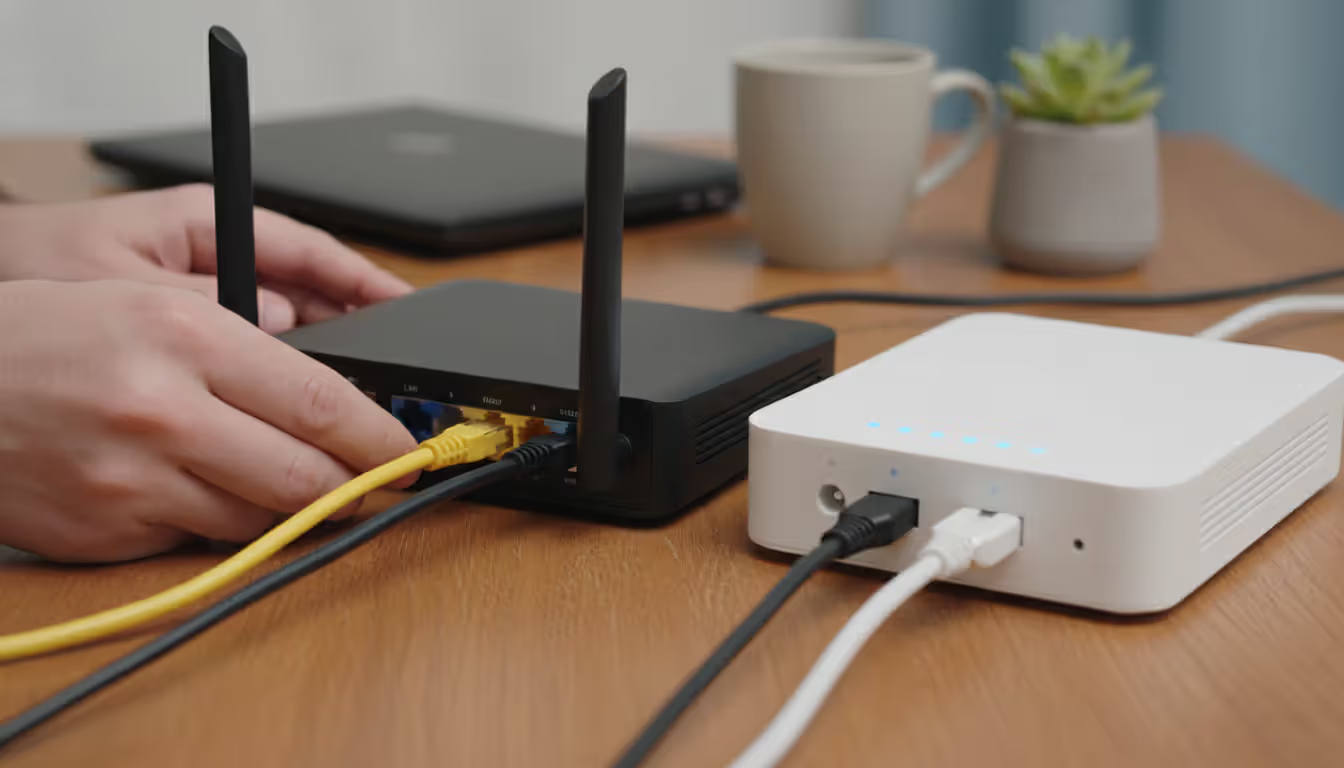
Wired connections between routers deliver the best performance. Running an Ethernet cable from a LAN port on your primary router to the WAN port on your secondary router creates a stable backbone for your extended network. This method maintains full bandwidth between the two routers without wireless interference.
Wireless connections offer convenience when running cables isn't practical. The secondary router connects to the primary router's WiFi signal and rebroadcasts it. This "wireless bridge" mode works but cuts available bandwidth roughly in half since the secondary router must receive and transmit data on the same radio channels.
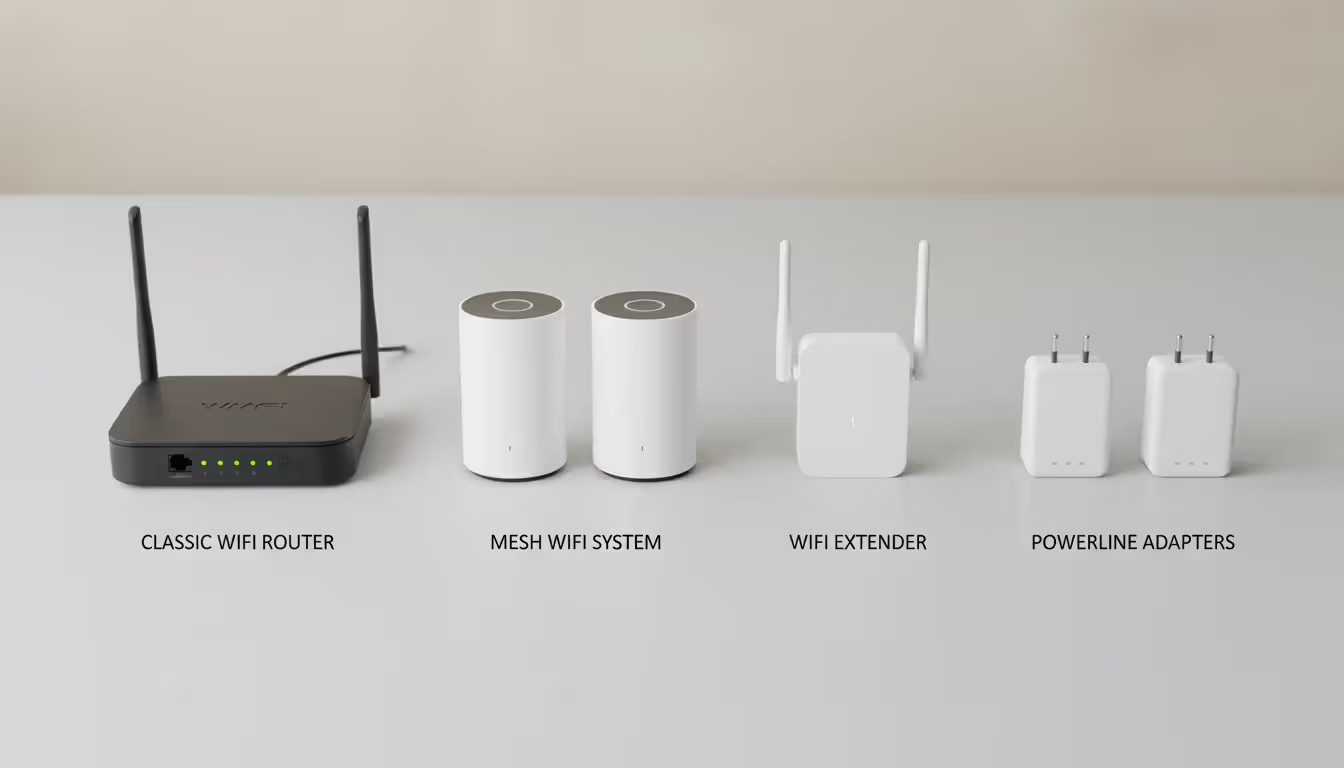
Powerline adapters provide a middle-ground solution. These devices send network data through your home's electrical wiring, letting you place a second router anywhere with an outlet. Performance varies based on your home's electrical system—older wiring with multiple circuit breakers between adapters reduces effectiveness.
Router vs. Access Point Mode
Access point (AP) mode converts your secondary router into a simple WiFi broadcaster without routing functions. In this configuration, the primary router handles all IP address management and network traffic decisions. The access point just extends wireless coverage, with all devices appearing on the same network.
This setup simplifies management since you're running one network with extended coverage rather than two separate networks. Devices can roam between the primary router and access point without switching networks, though seamless handoff depends on your specific hardware.
Router mode keeps the secondary device functioning as a full router with its own subnet. Devices connected to the second router sit behind two layers of NAT (Network Address Translation). This creates more network isolation but can cause issues with gaming consoles, port forwarding, and some streaming services that struggle with double NAT configurations.
Access point mode eliminates 90% of the configuration headaches people encounter with dual-router setups. You get extended coverage without the complexity of managing multiple subnets or dealing with double NAT problems
— Sarah Mitchell
Setting Up a Second Router in Your Home
Start by identifying the optimal location for your second router. Walk through your home with your smartphone, checking WiFi signal strength in different rooms. Place the secondary router in an area where the primary router's signal remains strong but coverage drops off beyond that point—typically halfway between your primary router and the dead zone you're trying to cover.
Avoid positioning routers directly on the floor or inside cabinets. Elevated placement on a shelf or mounted on a wall improves signal propagation. Keep the router away from microwave ovens, cordless phones, and baby monitors that operate on 2.4GHz frequencies.
For wired setup, connect an Ethernet cable from any LAN port on your primary router to the WAN/Internet port on your secondary router. Power on the secondary router and access its admin interface by typing its default IP address (usually 192.168.0.1 or 192.168.1.1) into a web browser.
Change the secondary router's LAN IP address to avoid conflicts. If your primary router uses 192.168.1.1, set the secondary to 192.168.2.1. Disable DHCP on the secondary router if you're using AP mode, or leave it enabled with a different subnet if you want separate networks.
Configure the wireless settings on your secondary router. You can use the same SSID (network name) and password as your primary router for seamless roaming, or create a different network name to manually control which router your devices connect to. Using the same SSID works well with modern devices that automatically switch to the stronger signal, though some older gadgets may cling to the weaker connection.
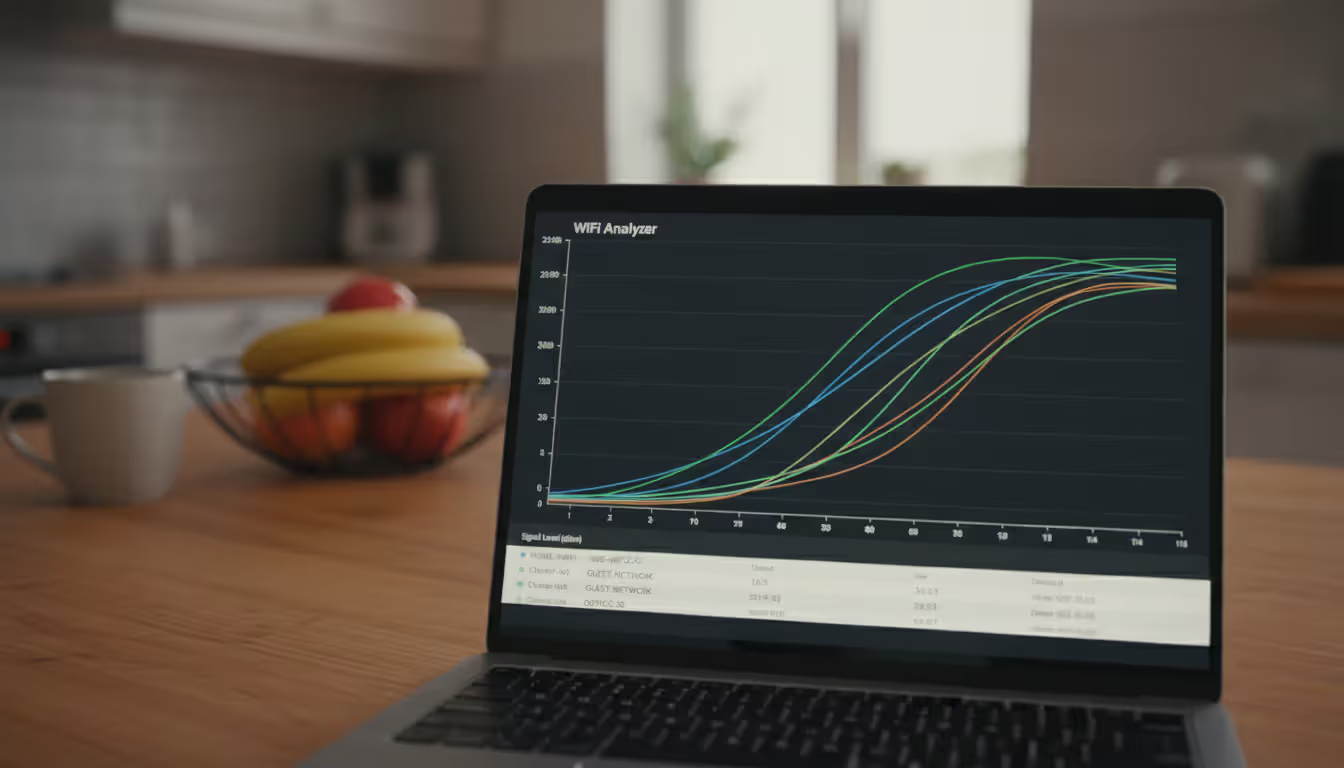
Set both routers to use different WiFi channels to minimize interference. If your primary router broadcasts on channel 6, configure the secondary router to use channel 1 or 11 on the 2.4GHz band. For 5GHz networks, choose channels that don't overlap—36, 44, 149, and 157 work well for most setups.
Test connectivity after configuration. Connect a device to the secondary router and verify internet access. Check speeds with an online speed test to ensure you're getting expected performance. Walk through your home again to confirm improved coverage in previously weak areas.
Author: Logan Kessler;
Source: baltazor.com
Can You Have Two Modems in One House
Having two modems in one house is technically possible but rarely practical for most homeowners. Your ISP provisions service to one modem per account, meaning a second modem requires a completely separate internet subscription with its own monthly fee.
Dual-ISP setups make sense in specific scenarios. Home-based businesses that need redundancy might maintain connections from two different providers—if one goes down, the other keeps critical operations running. This requires load-balancing routers or specialized networking equipment to manage traffic across both connections.
Some households in areas with limited options combine different connection types. You might have cable internet as your primary service and a 5G home internet backup from a cellular provider. The redundancy costs more but ensures connectivity for remote work when reliability matters more than budget.
Running two modems from the same ISP typically violates service agreements. Even if you physically connect two modems, the ISP provisions service based on the MAC address of an authorized device. The second modem won't receive a valid IP address or establish a connection without a separate account.
Cost implications make dual modems prohibitive for casual use. Two internet subscriptions mean paying $50-150 monthly for each connection, plus equipment fees. That $1,200-3,600 annual expense makes sense only when internet downtime directly impacts income or you have specific technical requirements that justify the redundancy.
For most homes looking to expand coverage, adding a second router to your existing single modem and internet connection delivers the benefits you need without doubling your monthly bills.
Common Problems and How to Fix Them
IP address conflicts top the list of dual-router issues. Both routers trying to use 192.168.1.1 creates confusion that prevents devices from connecting. Fix this by changing the secondary router's IP to a different subnet—192.168.2.1 or 192.168.50.1 work fine. Access the router's admin panel and look for LAN settings to make this change.
Double NAT causes problems with gaming consoles, VoIP phones, and port-forwarding applications. You'll notice strict NAT types in games or failed connections for remote access. The solution: enable bridge mode or AP mode on your secondary router, which disables its routing functions and eliminates the second NAT layer.
WiFi interference between routers degrades performance when both broadcast on the same or overlapping channels. Use a WiFi analyzer app to identify congested channels in your area. Manually assign non-overlapping channels rather than relying on automatic selection, which often makes poor choices in crowded wireless environments.
Devices refusing to switch between routers frustrates users who expect seamless roaming. Smartphones and laptops sometimes maintain connections to the weaker router even when moving closer to the stronger one. Setting both routers to the same SSID helps, but aggressive devices may need "forget network" and reconnection to force a switch. Enabling band steering and adjusting minimum RSSI thresholds in router settings encourages devices to drop weak connections.
Speed degradation happens when the connection between routers becomes a bottleneck. A wireless bridge setup cuts available bandwidth significantly. If your internet plan provides 500 Mbps but your secondary router connects wirelessly, expect 200-250 Mbps maximum on devices connected to that second router. Wired connections between routers prevent this performance loss.
DHCP conflicts occur when both routers assign IP addresses, potentially giving two devices the same address. Disable DHCP on your secondary router if you're running it in AP mode. If maintaining separate subnets, ensure the DHCP ranges don't overlap—primary router assigns 192.168.1.100-200, secondary uses 192.168.2.100-200.
Author: Logan Kessler;
Source: baltazor.com
Alternatives to Adding a Second Router
Mesh WiFi systems have become the go-to solution for whole-home coverage since their mainstream introduction. These systems use multiple identical units that communicate wirelessly, creating a unified network with seamless roaming. Setup takes minutes through smartphone apps, and the system automatically manages channel selection and device handoffs.
Mesh systems cost more upfront than adding a second router—expect $200-500 for a three-unit system versus $50-150 for a budget secondary router. However, the simplified management and better roaming performance justify the premium for most users who value convenience over tinkering.
Solution Type
Coverage Area
Setup Difficulty
Cost Range
Best For
Second Router
2,000-3,000 sq ft
Moderate
$50-$150
Tech-savvy users, wired connections available
Mesh System
3,000-6,000 sq ft
Easy
$200-$500
Seamless roaming, minimal configuration
WiFi Extender
1,000-1,500 sq ft
Easy
$30-$100
Small dead zones, budget priority
Powerline Adapter
Varies by wiring
Moderate
$60-$150
No Ethernet runs possible, modern wiring
WiFi extenders offer the cheapest coverage expansion but with significant compromises. These devices pick up your existing WiFi signal and rebroadcast it, cutting available bandwidth in half. They create a separate network name (like "YourNetwork_EXT") that devices must manually switch to, preventing seamless roaming. Use extenders only for small dead zones where other solutions aren't feasible.
Powerline adapters work well in homes with modern electrical systems but perform inconsistently in older houses. These adapters plug into outlets and send network data through electrical wiring, letting you place routers or access points anywhere with power. Performance degrades when adapters connect through different circuit breakers or share circuits with high-power appliances like refrigerators.
Upgrading to a single high-performance router solves coverage issues in many medium-sized homes. Modern WiFi 6E routers with powerful amplifiers and advanced beamforming cover 2,500 square feet effectively. This approach costs $200-400 but eliminates the complexity of managing multiple devices. Consider this option before adding equipment if your current router is more than three years old.
MoCA adapters provide another wired backhaul option if your home has coaxial cable runs. These adapters convert coax into network connections, delivering gigabit speeds between routers without running new Ethernet cables. They work particularly well in homes with cable outlets in multiple rooms but require adapters at both ends ($60-80 each).
Author: Logan Kessler;
Source: baltazor.com
FAQ
Do I need permission from my ISP to add a second router?
No, you don't need ISP permission to add a second router to your home network. The ISP provides service to your modem, and everything after that modem is your private network. You can connect as many routers, switches, and access points as you want without notifying your provider. However, adding a second modem requires a separate internet subscription.
Will two routers slow down my internet speed?
Two routers won't slow your internet speed if properly configured with wired connections between them. Each router maintains full bandwidth to connected devices. Wireless connections between routers (bridge mode) cut available bandwidth roughly in half on the secondary router. Configuration errors like double NAT can cause connection issues that appear as slowdowns but don't actually reduce your internet speed—they just prevent applications from working correctly.
Can two routers share the same network name (SSID)?
Yes, two routers can broadcast the same SSID and password, creating what appears to be a single network. This setup allows devices to automatically switch between routers as you move through your home, connecting to whichever provides the stronger signal. Use different channels on each router (1, 6, and 11 for 2.4GHz) to prevent interference. Some older devices may not roam effectively and stick to the first router they connected to even when signal strength drops.
How far apart should two routers be placed?
Position routers 30-50 feet apart in typical home construction, adjusting based on walls and interference. The goal is overlapping coverage where signals from both routers remain usable, allowing devices to switch smoothly. Place the secondary router where the primary router's signal drops to about 50-60% strength. Too close together causes unnecessary interference; too far apart creates gaps in coverage. Use a WiFi analyzer app while walking through your home to find the optimal location.
Is it better to use a second router or a mesh system?
Mesh systems provide easier setup and better device roaming but cost more. A second router offers comparable coverage at lower cost if you're comfortable with configuration and have Ethernet connections available between locations. Choose a second router when you need network separation, have technical knowledge, or want to repurpose existing equipment. Pick a mesh system for seamless whole-home coverage, minimal configuration, and reliable automatic device handoffs between units.
Can I use two different router brands together?
Yes, routers from different manufacturers work together without compatibility issues. Networking protocols are standardized, so a Netgear router connects to a TP-Link router as easily as two identical units. However, brand-specific features like mesh capabilities or unified management apps won't work across different manufacturers. Mixing brands makes sense when repurposing an old router or finding a specific model on sale, but matching brands simplifies management if you value consistent interfaces.
Adding a second router to your home solves real coverage and capacity problems without requiring a networking degree. The setup demands attention to IP addressing and channel selection, but the payoff—eliminated dead zones and support for dozens of devices—justifies the hour spent on configuration.
Wired connections between routers deliver the best performance and reliability. Access point mode simplifies management while avoiding double NAT complications that frustrate gamers and remote workers. Position your secondary router strategically where the primary signal remains strong but coverage needs extension.
Mesh systems offer an attractive alternative if budget allows and you prioritize convenience over cost savings. They handle the technical details automatically and provide superior roaming performance. However, a properly configured second router achieves similar coverage at a fraction of the price.
The key decision isn't whether you can have two routers—you absolutely can—but whether this approach fits your specific situation better than alternatives. Consider your home's layout, your technical comfort level, and whether you have Ethernet runs available. Most homes benefit from either a second router in AP mode or a mesh system, with the choice coming down to budget and how much configuration you're willing to tackle.
Deploying wireless networks without planning software risks coverage gaps and expensive rework. This guide explains how RF modeling tools predict signal behavior, recommend access point placement, and validate designs before installation—saving time and money across small business and enterprise deployments
Network topology defines how devices connect and communicate in your infrastructure. This guide covers topology types (star, mesh, ring, tree, hybrid), creating accurate network topology diagrams, choosing mapping tools, and avoiding common planning mistakes that impact performance and reliability
Network downtime costs US businesses $9,000 per minute. This comprehensive guide covers network management fundamentals, deployment models, key features, provider selection, and solutions to common challenges for modern IT infrastructure
Network diagrams map how devices connect and communicate in your infrastructure. This guide covers everything from basic diagrams to professional documentation, including tool selection, templates, and best practices that prevent costly troubleshooting delays
The content on this website is provided for general informational and educational purposes only. It is intended to explain concepts related to cloud computing, computer networking, infrastructure, and modern IT systems.
All information on this website, including articles, guides, and examples, is presented for general educational purposes. Technology implementations may vary depending on specific environments, business needs, infrastructure design, and technical requirements.
This website does not provide professional IT, engineering, or technical advice, and the information presented should not be used as a substitute for consultation with qualified IT professionals.
The website and its authors are not responsible for any errors or omissions, or for any outcomes resulting from decisions made based on the information provided on this website.